Permissions Matrix Reference
Most of the time you don't read this page — you build a role on the Roles page, pick levels from the on-screen controls, and Aeon enforces them. This is the reference you reach for when you're designing a role and need to know exactly what each switch controls: what "Edit" gives someone that "View" doesn't, which part of the Customization Manager a configuration group unlocks, or which fields a default field group hides.
Everything a role can grant lives in three layers. The first two are what you set on a role; the third is a separate restriction layer. The tables below are the authoritative list of every value in each layer.
- You're creating or editing a role and want to confirm what a given level actually permits before you save it.
- A staff member can (or can't) do something and you're tracing which capability and level is responsible.
- You're planning a least-privilege role and need the full menu of categories and groups to choose from.
| Layer | What it controls | How you set it | Where you see it |
|---|---|---|---|
| Operational capabilities | What the role can do in the main workspace (requests, users, billing, …) | A level per category: None / View / Edit / Full | Role editor → Operational tab |
| Configuration capabilities | Which sections of the Customization Manager the role can open | An on/off toggle per group | Role editor → Configuration tab |
| Field restrictions | Which sensitive fields are hidden from the role | Field groups assigned to the role | Role editor → Field Restrictions tab |
Access levels
Operational capabilities use four levels. They are cumulative and ordered — each level includes everything the levels below it allow, so granting Full also grants View and Edit, and granting Edit also grants View.
| Level | Meaning |
|---|---|
| None | No access. The feature is hidden or disabled for the role. |
| View | Read-only. The role can open and read records in the category but cannot change them. |
| Edit | View, plus the ability to create and modify records — including locking a record for editing. |
| Full | Edit, plus the higher-impact actions in the category (for example, deleting, or other privileged operations). |
Aeon compares the role's level against the level a feature requires, using the order None < View < Edit < Full. A feature that requires Edit is available to anyone at Edit or Full; a feature that requires View is available at View, Edit, or Full. This is why you only ever pick one level per category — the higher levels automatically cover the lower ones.
Operational capabilities
These ten categories appear as rows on the role editor's Operational tab, each with a None / View / Edit / Full selector. The tab is introduced on screen as "Control what this role can do in the main workspace."
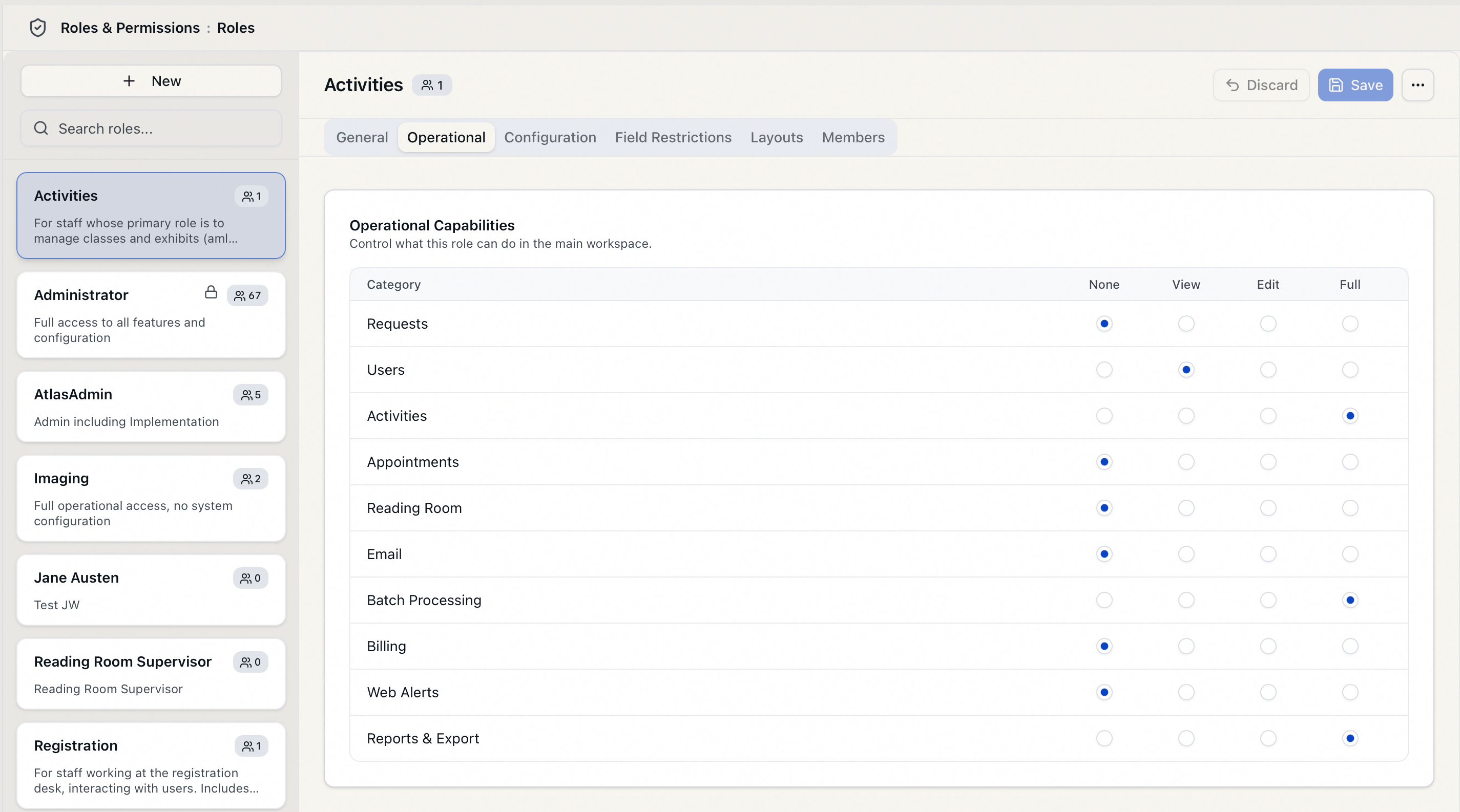
| Category (on-screen label) | Governs |
|---|---|
| Requests | Opening, editing, routing, cloning, merging, cancelling, and otherwise processing requests. Edit is the level required to lock a request for editing. |
| Users | Viewing and editing patron (user) records, clearance, notes, proxies, and related user actions. |
| Activities | Viewing and editing activities, their members, attendance, and activity requests. |
| Appointments | Viewing, creating, editing, confirming, and cancelling reading-room appointments. |
| Reading Room | Signing patrons in and out, marking them away, and assigning seating and locations. |
| Composing and sending email, and working with the outgoing email queue (pending and failed). | |
| Batch Processing | Running batch / bulk workflow processes across multiple requests. |
| Billing | Viewing and editing charges, payments, invoices, and billing accounts on requests and users. |
| Web Alerts | Viewing, creating, editing, and deleting web alerts. |
| Reports & Export | Exporting data — for example, exporting the results of a bulk selection or a custom search. (The category is labeled Reports & Export, but in the current release it controls the export actions.) |
A category level controls whether a role can perform an action — for example, whether someone can edit a user record at all. It does not, on its own, hide individual fields within a record the role can see. Hiding specific sensitive fields is the job of field restrictions (below).
Configuration capabilities
These ten groups appear as checkboxes on the role editor's Configuration tab, introduced on screen as "Control which sections of the Customization Manager this role can access." Each is a simple on/off toggle — there are no View/Edit/Full levels for configuration. A role with a group off does not see that part of the Customization Manager at all.
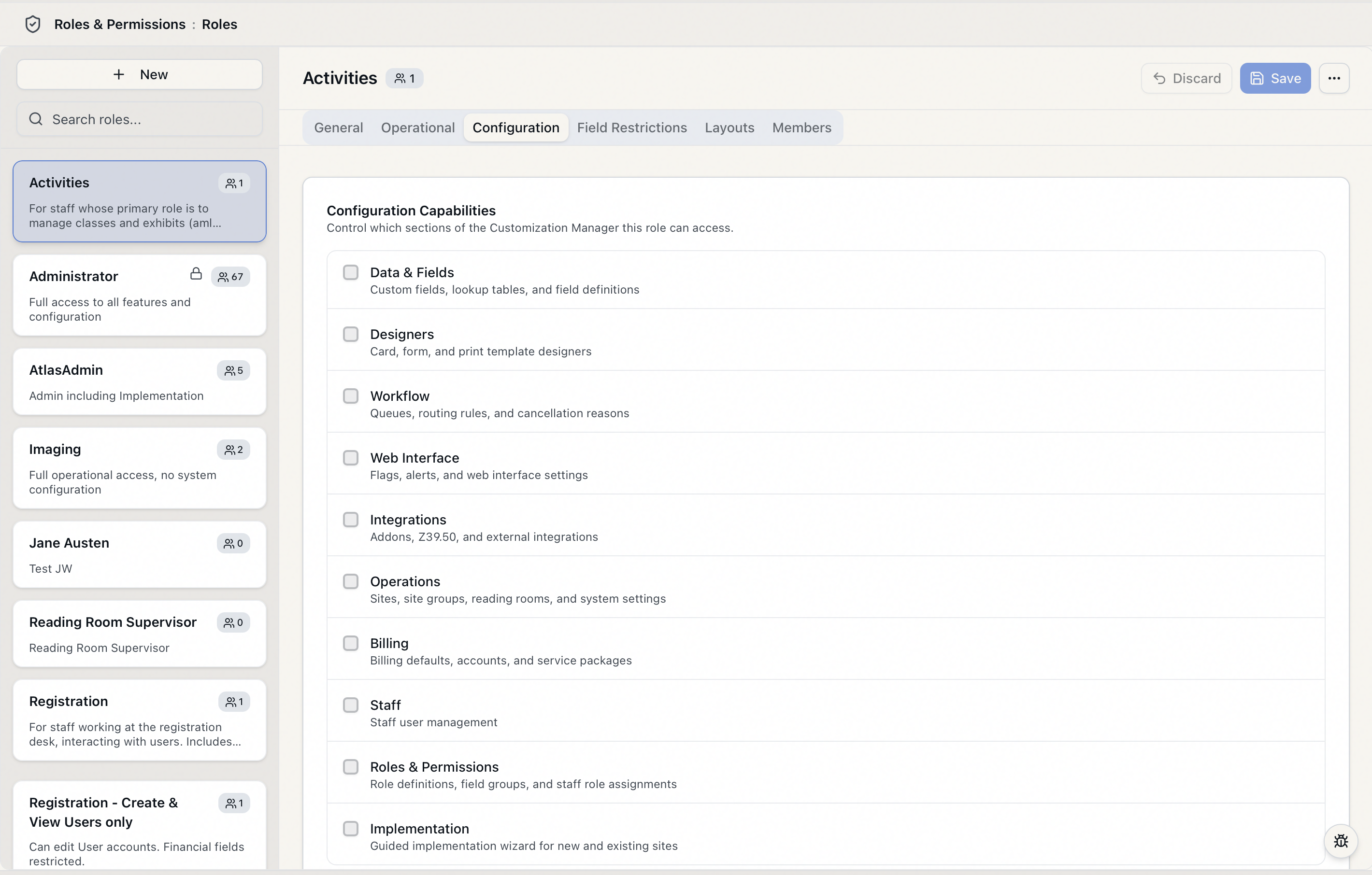
The label and one-line description below are exactly what appears beside each checkbox.
| Group (on-screen label) | On-screen description |
|---|---|
| Data & Fields | Custom fields, lookup tables, and field definitions |
| Designers | Card, form, and print template designers |
| Workflow | Queues, routing rules, and cancellation reasons |
| Web Interface | Flags, alerts, and web interface settings |
| Integrations | Addons, Z39.50, and external integrations |
| Operations | Sites, site groups, reading rooms, and system settings |
| Billing | Billing defaults, accounts, and service packages |
| Staff | Staff user management |
| Roles & Permissions | Role definitions, field groups, and staff role assignments |
| Implementation | Guided implementation wizard for new and existing sites |
The Roles & Permissions group is what lets a role open this very area — roles, field groups, and staff role assignments. Removing it from your own role is the one change that can shut you out of permissions management entirely. If you try, the editor warns you on the spot: "You are removing Roles & Permissions access from your own role. If saved, you will be locked out of this settings page." Aeon also refuses to leave the system with no administrator at all. See Protecting Against Lockout: One-Admin Minimum for the full rules.
Field restrictions
Field restrictions are the third layer. Instead of controlling actions, they hide specific fields from a role even on records the role is otherwise allowed to open. You apply them by assigning one or more field groups to a role on the Field Restrictions tab. A field group is just a named bundle of columns (for example, a patron's government ID fields). Assign the group to a role, and those fields are hidden for everyone in that role.
Aeon includes three system-default field groups. These can't be deleted, but you can edit them, assign them to any role, and create your own custom groups alongside them.
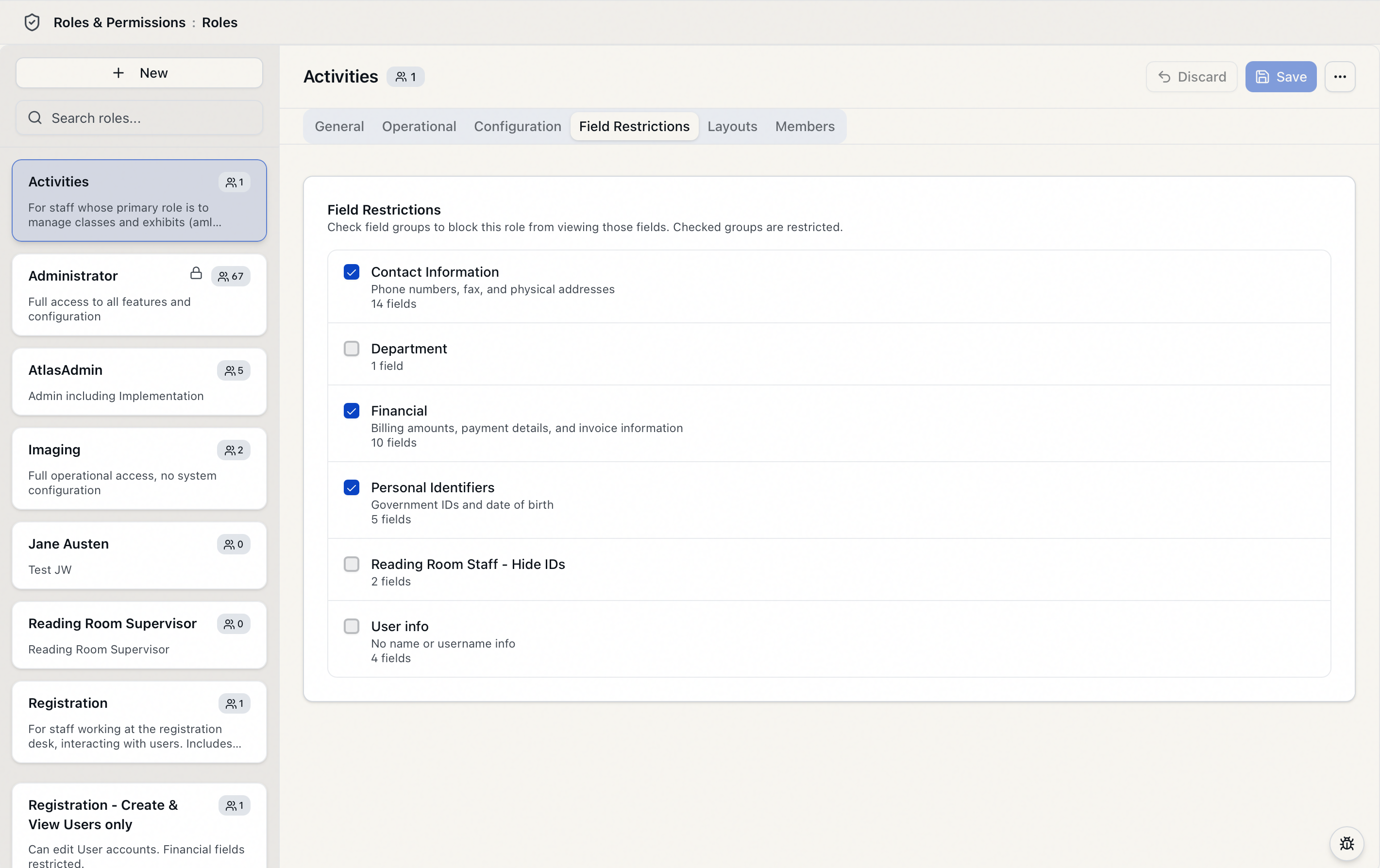
| System-default field group | What it hides |
|---|---|
| Personal Identifiers | Government IDs and date of birth (the user's ID, alternate ID, their types, and date of birth). |
| Contact Information | Phone numbers, fax, and physical addresses (mailing and shipping address fields). |
| Financial | Billing amounts, payment details, and invoice information (max cost, account/invoice numbers, base/unit fees and tax rate, and payment method, reference, amount, and authorization code). |
Field groups can only target fields Aeon has marked as restrictable — currently patron data and billing and payment data. You can't, for example, hide a request's call number with a field group. For how to build and assign your own groups, see Field Restriction Groups and Creating a Custom Field Restriction Group.
The two built-in roles
Every Aeon site starts with two system-default roles. They mark the two ends of the spectrum and can't be deleted, which makes them a useful reference point when you're deciding what a custom role should grant.
| Role | Operational capabilities | Configuration capabilities | Field restrictions |
|---|---|---|---|
| Administrator | Every category at Full | Every group on | None |
| Staff | Every category at Full | Every group off | None |
In other words, the only difference between the two built-in roles is configuration access: Staff can do everything in the day-to-day workspace but can't open the Customization Manager, while Administrator adds full configuration access on top. A custom role is simply a different mix — lower some operational levels, turn on only the configuration groups a person needs, and add field restrictions where data should be hidden. See System Default Roles: Administrator and Staff for more on when to use each.