Permissions Overview
The Overview is the landing page for the Roles & Permissions area of the Customization Manager. It's a read-only dashboard: a snapshot of your access-control setup at a glance — how many roles you've defined, how many staff are assigned to a role (and how many aren't), how many field groups exist, and a quick capability summary for every role.
You don't configure anything here. The Overview is a starting point — you scan it to get your bearings, then click through to the page where the actual work happens (Roles, Staff, or Field Groups). Think of it as the front door to permissions, not a workbench.
- You're setting up permissions for the first time and want to see what's already there. Aeon includes two roles: Administrator (full access to everything) and Staff (full operational access, but no configuration access).
- You want a fast answer to "how many staff don't have a role yet?" without opening the Staff page.
- You're reviewing what a role can do and want the short version before opening it in the editor.
- You just want a jumping-off point — every card on this page is a shortcut into the page behind it.
Getting there
- Open the Customization Manager.
- In the left navigation, expand Roles & Permissions.
- Click Overview.
The Overview is the default page for this section, so navigating to Roles & Permissions without picking a sub-page lands you here automatically. The other pages in this section are Staff, Roles, and Field Groups.
The entire Roles & Permissions section — Overview included — is gated by the Roles & Permissions configuration capability. If your role doesn't have that capability enabled, you won't see this section in the Customization Manager and can't open the Overview. (The Staff page additionally relies on the separate Staff configuration capability for some actions, but role assignment there falls under Roles & Permissions.)
The stats bar
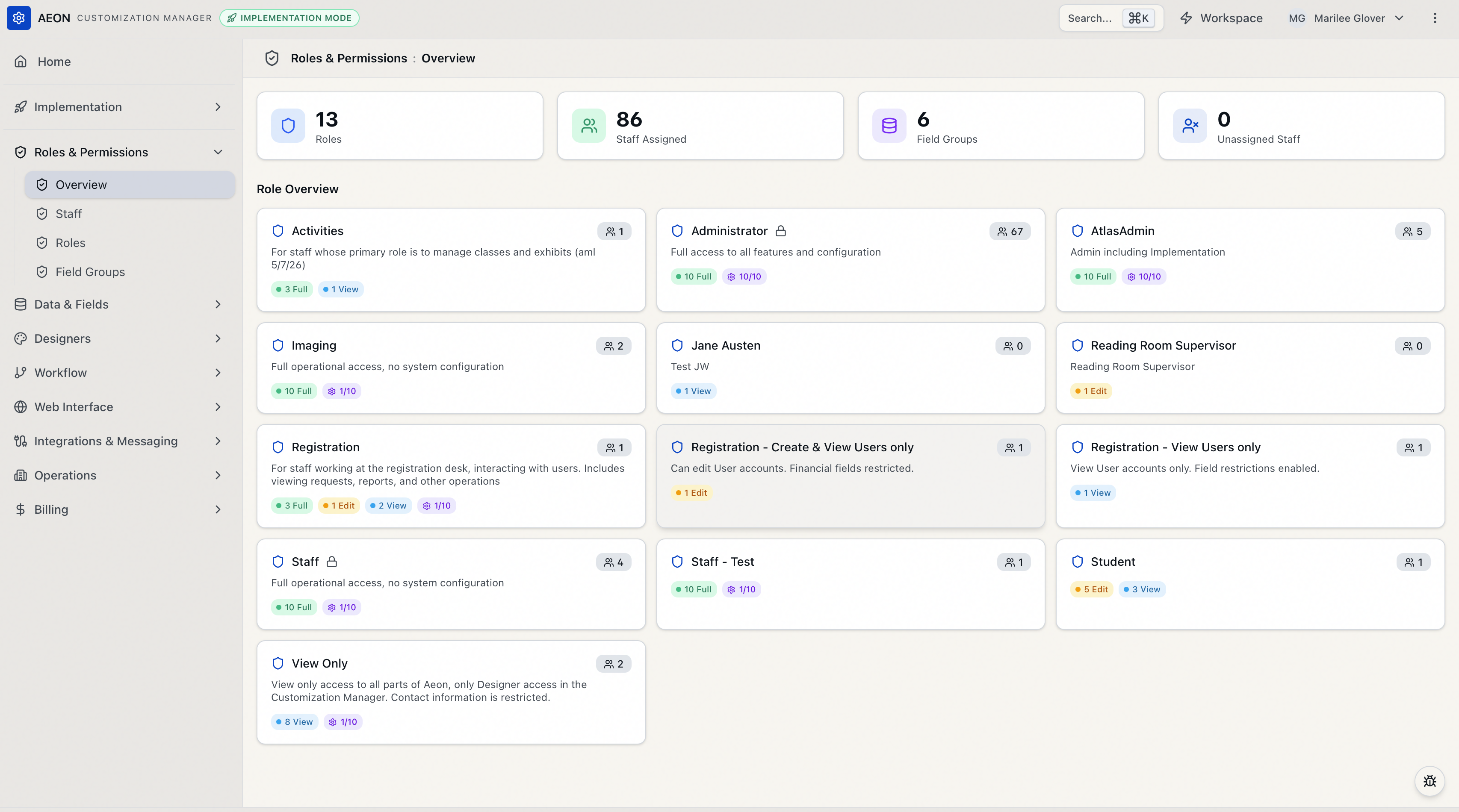
Across the top of the page are four cards summarizing your setup. Each shows a count and is clickable — selecting a card takes you to the matching page.
| Card | What it counts | Where it takes you |
|---|---|---|
| Roles | Total number of roles defined | Roles page |
| Staff Assigned | Staff accounts that have a role assigned | Staff page |
| Field Groups | Field restriction groups defined | Field Groups page |
| Unassigned Staff | Staff accounts with no role assigned | Staff page, pre-filtered to unassigned |
The Unassigned Staff card turns amber when the count is above zero — a visual nudge that some staff accounts have no role and therefore no defined access. Clicking it opens the Staff page already filtered to just those accounts, so you can assign roles without hunting for them.
A staff account is assigned once it has a role; it's unassigned until then. The two counts always add up to your total staff. For example, with 12 staff accounts where 10 have roles, you'll see 10 under Staff Assigned and 2 under Unassigned Staff.
The Role Overview cards
Below the stats bar, under the Role Overview heading, you'll find one card per role. Each card is a compact at-a-glance summary:
- Role name, next to a shield icon.
- A lock icon appears beside the name when the role is a system default. Aeon includes two of these — Administrator and Staff — and they can't be deleted.
- A badge on the right showing how many staff members are assigned to that role.
- The role's description, if one was entered.
- A capability summary (described below) showing what the role can do.
Clicking anywhere on a role card opens the Roles page with that role already selected, ready to edit.
If no roles exist yet, the section shows "No roles configured yet." instead of cards — though in practice you'll always have at least the two system defaults.
Reading the capability summary
The colored chips at the bottom of each card are a quick read on the role's operational access. Aeon defines access at four levels, from least to most:
| Level | Meaning |
|---|---|
| None | No access — not shown as a chip |
| View | Can see, but not change |
| Edit | Can see and change |
| Full | Complete access, including the most sensitive actions |
The summary groups the role's ten operational categories (Requests, Users, Activities, Appointments, Reading Room, Email, Batch Processing, Billing, Web Alerts, Reports & Export) by level and shows a count for each — for example, a green 8 Full chip, an amber 1 Edit chip, and a blue 1 View chip. Hovering a chip lists exactly which categories fall at that level. Categories set to None aren't counted.
A separate violet chip summarizes configuration access as a fraction, such as 3/10, meaning three of the ten configuration groups are enabled for that role. Hovering it confirms "X of Y configuration groups enabled."
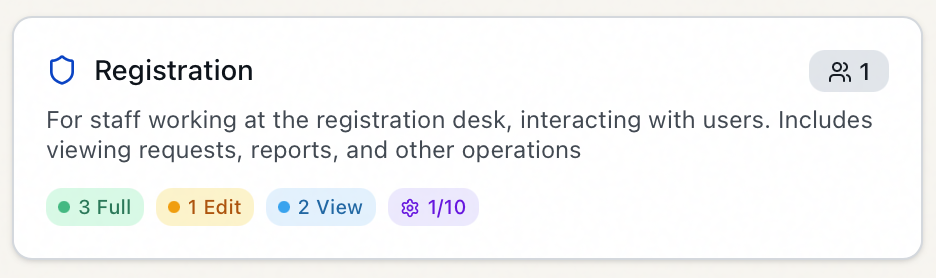
As a concrete example, the built-in Staff role has all ten operational categories set to Full and no configuration access, so its card reads a single green 10 Full chip with no violet config chip. The Administrator role reads 10 Full plus a violet 10/10 — full access everywhere.
If a role has no operational or configuration access at all, the card reads "No capabilities assigned" in place of the chips.
The chips count categories and groups; they don't show every individual setting. The Overview is intentionally high-level. To see — and change — the exact access level for each category, the enabled configuration groups, field restrictions, and layout assignments, open the role in the Roles page. The Overview is where you spot something worth a closer look; the editor is where you act on it.
What to do next
The Overview points you at the rest of this section:
- To create, clone, edit, or delete roles, go to the Roles page (or click any role card).
- To assign roles to people, reset passwords, or deactivate accounts, go to the Staff page (or click the Staff Assigned / Unassigned Staff cards).
- To define which fields a role can or can't see, go to the Field Groups page (or click the Field Groups card).