Deleting a Role
Roles accumulate over time. You clone one to try out a permission set, a department reorganizes, or you simply made a role you no longer use. When a custom role has outlived its purpose, you delete it from the Roles area of the permissions manager.
Deleting a role is straightforward when nobody is using it. The wrinkle is what happens to staff who are still assigned to the role you're removing — a role can't just vanish out from under them. Aeon handles that by making you pick another role for those people first, and it has a few guard rails that stop you from deleting something the system depends on.
- You created a custom role (often by cloning) that you've decided not to keep.
- A role is obsolete after a workflow or staffing change and you want to tidy up the list.
- You're consolidating two similar roles into one and want to retire the leftover.
The two built-in roles — Administrator and Staff — cannot be deleted. They're marked with a small lock icon in the role list and have no Delete option. See System Default Roles: Administrator and Staff for what they're for. Everything below is about the custom roles you've created yourself.
Where roles live
Roles are managed in the Customization Manager, under Permissions → Roles. Open the permissions area and select the Roles tab; the left panel lists every role with its assigned-user count shown as a small badge.
Deleting a role with no assigned staff
This is the simple case — a role nobody is using.
- Open Customization Manager → Permissions → Roles.
- Find the role in the left-hand list. Its user badge should read 0.
- Start the delete. You have two ways in:
- Right-click the role in the list and choose Delete, or
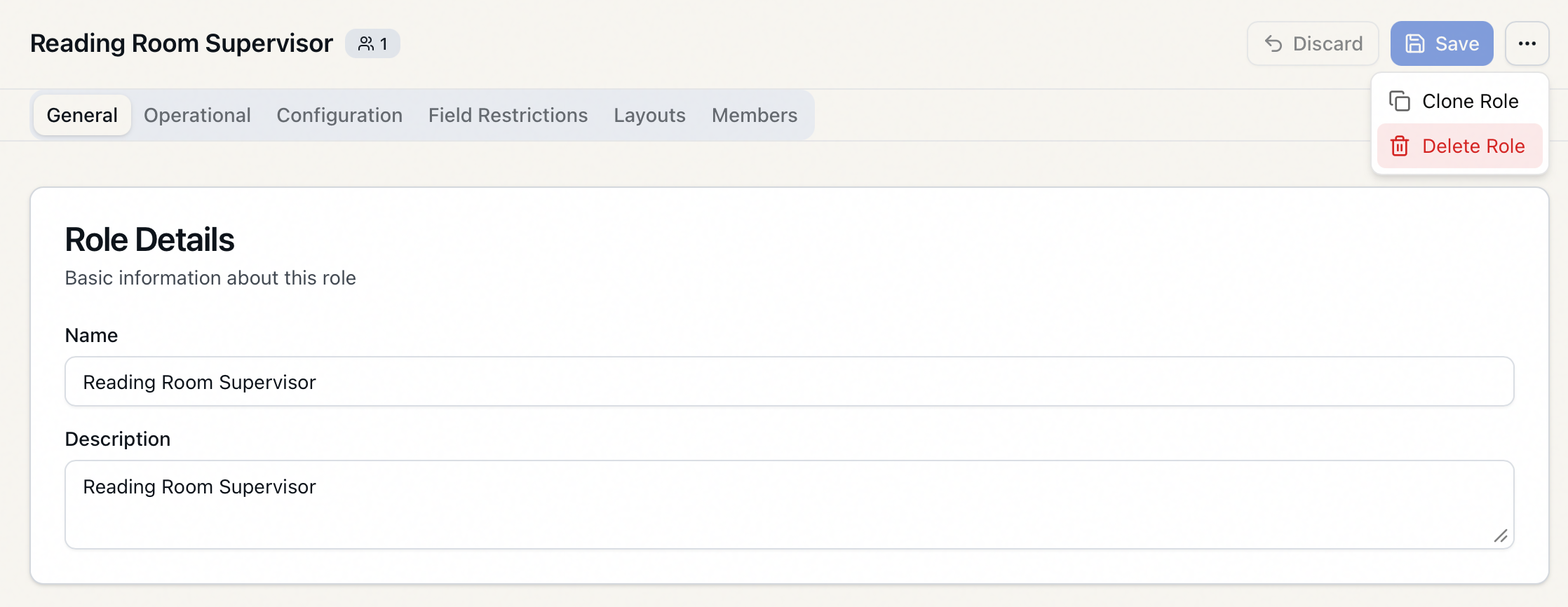
- Select the role to open it, then use the ... (more actions) menu at the top of the editor and choose Delete Role.
- A Delete role confirmation dialog appears, asking "Are you sure you want to delete the role "Reading Room Temps"? This action cannot be undone."
- Click Delete.
The role is removed and a brief "Role "Reading Room Temps" deleted." confirmation appears. If you had that role open in the editor, the detail pane clears.
Deleting a role that still has staff assigned
If anyone is still assigned to the role, you can't simply delete it — those staff members need somewhere to go. The same Delete role dialog handles this in one step by reassigning them as part of the deletion.
- Start the delete the same way (right-click → Delete, or ... → Delete Role).
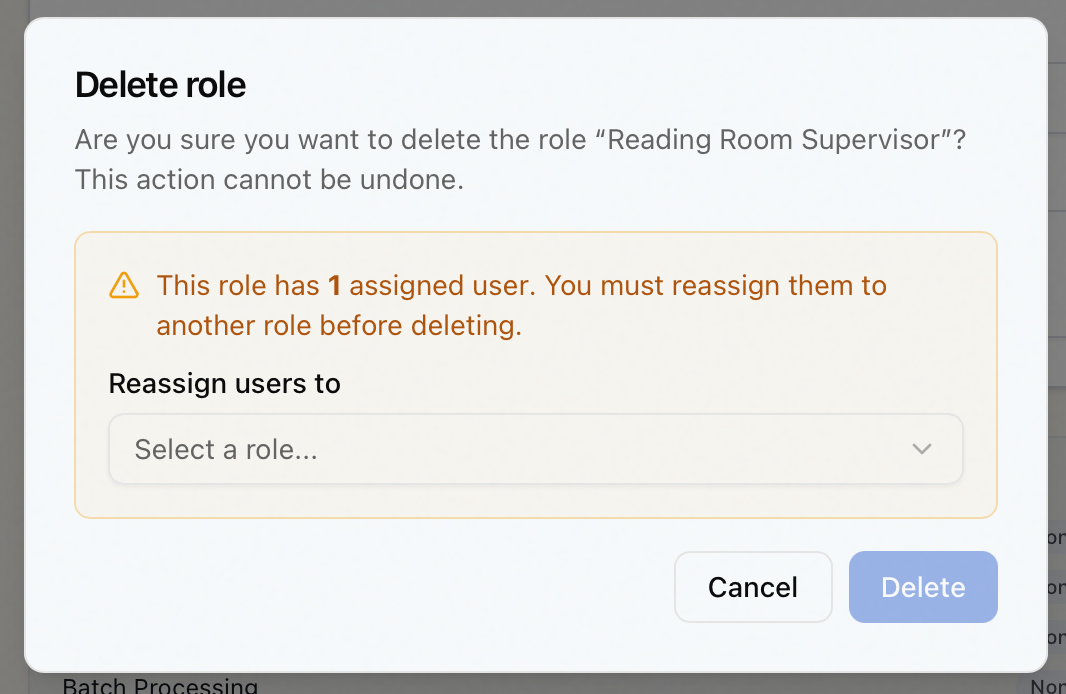
- Because the role has assigned staff, the dialog shows an amber warning: "This role has 3 assigned users. You must reassign them to another role before deleting." (The count and singular/plural — "user" vs "users" — match the actual number.)
- Under Reassign users to, open the dropdown and pick the role those staff should move to. Only other roles appear in the list — you can't reassign people to the role you're deleting.
- The Delete button stays disabled until you've chosen a destination role. Once you select one, click Delete.
Aeon moves every affected staff member to the role you picked and then deletes the old role, as a single all-or-nothing operation — if anything fails, nobody is moved and nothing is deleted. You'll see the same "Role "…" deleted." confirmation.
Because a staff member's permissions come from their role, moving them to a different role changes what they can do. Aeon refreshes their access right away — their current session is re-evaluated against the new role rather than waiting for them to log out and back in. Keep that in mind when you choose the destination role: pick one whose access is appropriate for the people you're moving.
Guards that can stop a deletion
Aeon enforces a few rules on the server. If one applies, the deletion is refused and the reason appears as an error message; nothing is changed.
System default roles can't be deleted
Administrator and Staff are protected. The Delete option doesn't even appear for them in the UI, and the server will refuse the request if it somehow arrives, with "System default roles cannot be deleted."
You must provide a destination for assigned staff
If a role has assigned staff and no reassignment target is supplied, the deletion is rejected: "This role has N assigned user(s). Provide a reassignToRoleId to move them to another role before deletion." In normal use the dialog prevents this by disabling Delete until you choose a role — you'd only see the raw message if the requirement were bypassed.
The last admin role with staff is protected
This is the one that prevents a self-inflicted lockout. Roles that grant Roles & Permissions configuration access are "admin" roles — they're the ones that can reach the permissions manager itself.
If you try to delete an admin role and reassign its staff to a role that doesn't have admin access, Aeon checks whether any other admin role still has staff on it. If none does, it refuses:
Cannot delete this role. It is the only role with Roles & Permissions access that has assigned staff. Reassign users to a role with admin access, or grant another role admin access first.
In other words, Aeon won't let you delete the only path back into the admin interface. To get past this guard you have two options, both named in the message: reassign the role's staff to a role that also has admin access, or grant some other role admin access (and assign at least one person to it) before deleting.
Deleting a role removes it along with its capability settings, field restrictions, and layout assignments. There's no undo. If you might want the role's configuration back later, clone it to a holding role before deleting, or simply leave it in place with no staff assigned — an unused role is harmless.
Everything in the Roles area, including deleting a role, requires the Roles & Permissions configuration capability. If your role doesn't grant it, you won't be able to reach the permissions manager at all. See Roles & Capabilities: The Permissions Model.