Editing a Role: Layout Assignments
Every role in Aeon shows staff the system default layout for each kind of screen unless you tell it otherwise. Layout assignments are how you override that: you point a role at a specific layout template you built in one of the Designers, and from then on everyone with that role sees your template instead of the default.
This is the tab you use when one group of staff needs a different view of the same data. A reading-room supervisor might want a request form arranged around appointments; a billing clerk might want a request card that leads with the balance; a student worker might get a stripped-down user form. You design those layouts once in the Designers, then come here and attach them to the right role.
Layout assignments never change what data exists or what a role can do — that's what operational capabilities and field restrictions are for. They only change how the screen is arranged. A role with no assignments isn't missing anything; it's just using the defaults.
- A role needs a form, card, or queue arranged differently from the rest of your staff, and you've already built that layout in a Designer.
- You want one group (front desk, reading room, billing) to land on a view tailored to their job without changing anyone else's.
- You're cloning a role and want to confirm which custom layouts came along with it.
Before you start
Layout assignments live inside the role editor, which is part of the Roles & Permissions configuration area. You can only get here if your own role has Roles & Permissions configuration access — the same access that protects the rest of the admin permission UI.
You also need the layout itself to already exist. The dropdowns on this tab only list templates that have been created in the matching Designer. If a form type shows nothing but (Use Default), no custom template has been built for it yet.
The entire Roles & Permissions area, including layout assignments, requires the Roles & Permissions configuration capability on your role. If your role doesn't have it, this section won't appear in the Customization Manager. (The built-in Administrator role has it; the built-in Staff role does not.)
Opening the Layouts tab
- Open the Customization Manager.
- In the left navigation, expand Roles & Permissions.
- Choose Roles (alongside Overview, Staff, and Field Groups).
- Select the role you want to edit from the list down the left side.
- In the role editor, open the Layouts tab.
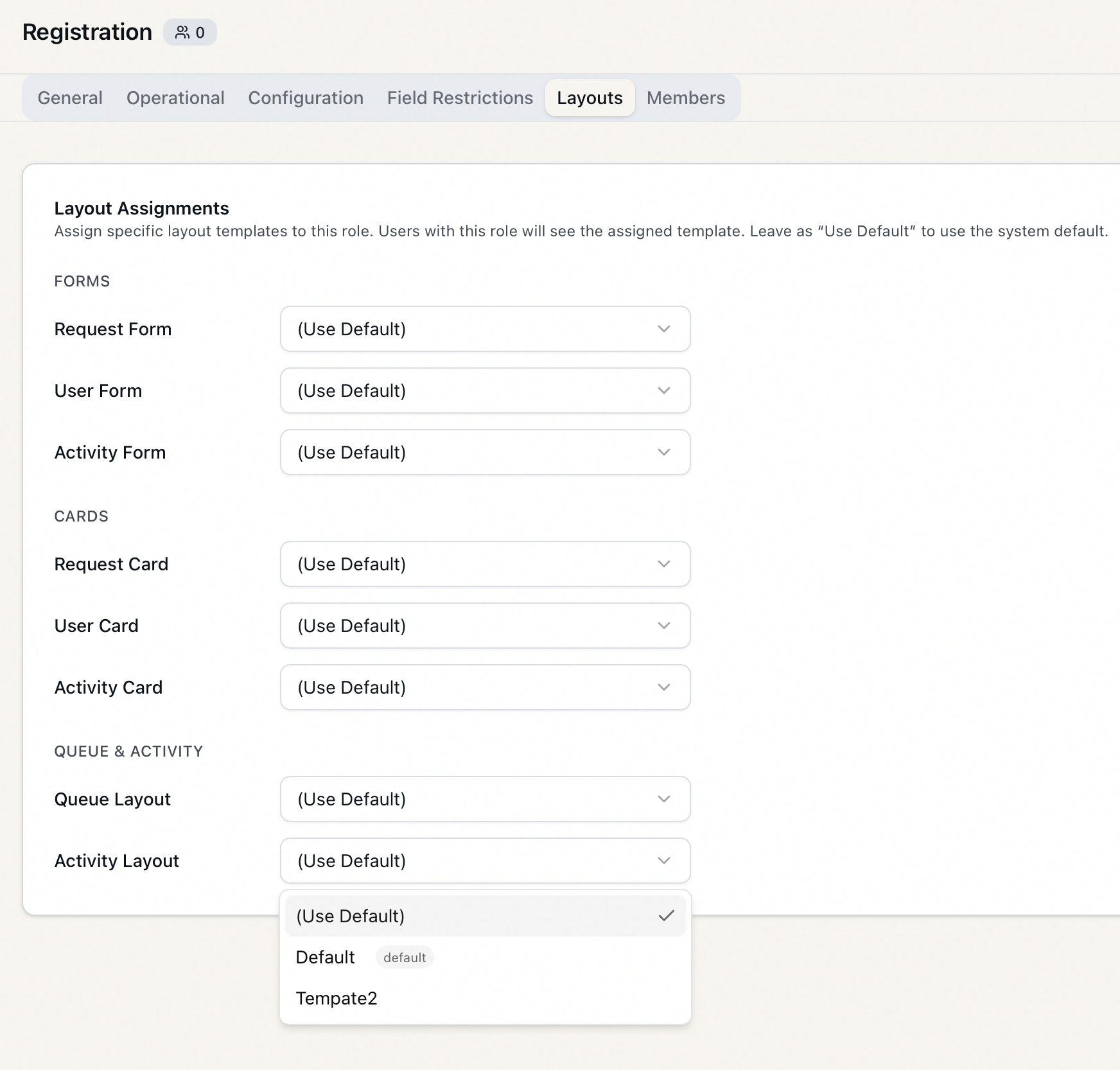
The tab is headed Layout Assignments, with the note: "Assign specific layout templates to this role. Users with this role will see the assigned template. Leave as 'Use Default' to use the system default."
What you can assign
The assignments are organized into three groups, one dropdown per layout type:
| Group | Layout types | Designed in |
|---|---|---|
| Forms | Request Form, User Form, Activity Form | the Form Designers |
| Cards | Request Card, User Card, Activity Card | the Card Designers |
| Queue & Activity | Queue Layout, Activity Layout | the Queue Designer and Activity Designer |
Each dropdown lists every template that exists for that layout type. The template currently marked as the system default carries a small default badge next to its name, so you can tell at a glance which one (Use Default) resolves to.
For Queue Layout and Activity Layout, an individual staff member's own saved layout takes precedence over the role's assignment — these two are per-user views. So if someone has customized their own queue or activity layout, they'll keep seeing their personal version even when their role points at a different template. The Forms and Cards assignments have no such per-user override.
A form is the full detail screen you open to read and edit one record. A card is the compact summary that represents a record inside a list — for example, a row in a queue or a result in search. Assigning a Request Form and a Request Card are two independent choices: a role can take a custom form while keeping the default card, or the reverse.
Assigning a layout
- Find the row for the layout type you want to change — say, Request Form under Forms.
- Open its dropdown. It starts on (Use Default).
- Pick the template you built in the Designer (for example, Reading Room Request).
- Repeat for any other layout types this role should override.
- Click Save at the top of the role editor.
That's it — the next time someone with this role opens a request, they'll see your Reading Room Request layout instead of the default. Staff in other roles are unaffected.
You can set as many or as few of the eight layout types as you like. Anything you leave on (Use Default) simply follows whatever template is marked default in its Designer — including any change you make to that default later. You're only pinning the ones you deliberately point at a named template.
Reverting to the default
To take a role off a custom layout and put it back on the system default:
- Open the role's Layouts tab.
- Find the layout type and set its dropdown back to (Use Default).
- Click Save.
The role immediately goes back to whatever template is marked default for that layout type. The custom template you'd assigned is untouched — you've only changed this role's pointer to it, not the template itself.
Saving and discarding
Layout assignments share the role editor's single Save / Discard pair at the top, alongside the General, Operational, Configuration, Field Restrictions, and Members tabs. Changes you make here aren't written until you click Save, and Save commits every unsaved change across all the tabs at once — so you can adjust capabilities and layouts together in one pass. Discard throws away everything unsaved, layout choices included. On a successful save you'll see a "Role "Reading Room Supervisor" saved." confirmation.
Like any role change, saving here re-evaluates the sessions of everyone assigned to the role: they're signed back in and pick up the new layout on their next action, rather than mid-task.
Cloning a role copies its layout assignments together with its capabilities and field restrictions. The clone starts out pointing at the same templates as the original; from there you can repoint or reset any of them independently. See Cloning a Role.
Related pages
- Editing a Role: Operational Capabilities — what the role can do
- Editing a Role: Configuration Capabilities — which admin areas the role can reach
- Editing a Role: Field Restrictions — which sensitive fields the role can't see
- Roles & Capabilities: The Permissions Model — how the pieces fit together
- The Designers, where the templates in these dropdowns are built: Form Designer, Card Designer, Queue Designer, Activity Designer