Managing Staff Accounts
A staff account is the login that lets a person work in Aeon. Most of the time you create one when someone new joins, point them at a role so they have the right permissions, and leave it alone. You come back to the Staff tab when something about that person changes — they move teams (new role), they forgot their password (reset it), they leave for the summer (deactivate), or they leave for good (delete).
In Aeon 7 all of this happens in the web client. There is no separate desktop "Staff Manager" application to open — everything below is done on the Staff tab inside the Customization Manager.
- A new colleague needs to log in — create an account and assign them a role.
- Someone changes job function — open their account and change the role.
- A password needs resetting, or an account got locked out from failed logins — use Reset Password or clear the lock.
- A staff member leaves temporarily — deactivate them so they can't log in but their record (and history) stays put.
- A staff member leaves permanently — delete the account.
- You need several similar accounts (a group of student workers, say) — copy an existing one.
The Staff tab is part of the Customization Manager's roles-and-permissions area. Managing staff accounts requires the Staff configuration capability on your role. If your role doesn't grant it, the Staff tab won't be available to you.
One bulk action — assigning a role to many staff at once — additionally requires the Roles & Permissions configuration capability.
The Staff tab at a glance
The Staff tab is a two-pane view:
- Left (the staff list). A New button, a filter dropdown, and a card for each staff member. Each card shows the username, the assigned role as a badge (or an amber No Role badge if none is assigned), and a small padlock icon if the account is locked.
- Right (the detail pane). When you select a staff member, their account opens here for editing. Until you pick someone, it reads "Select a staff member to edit."
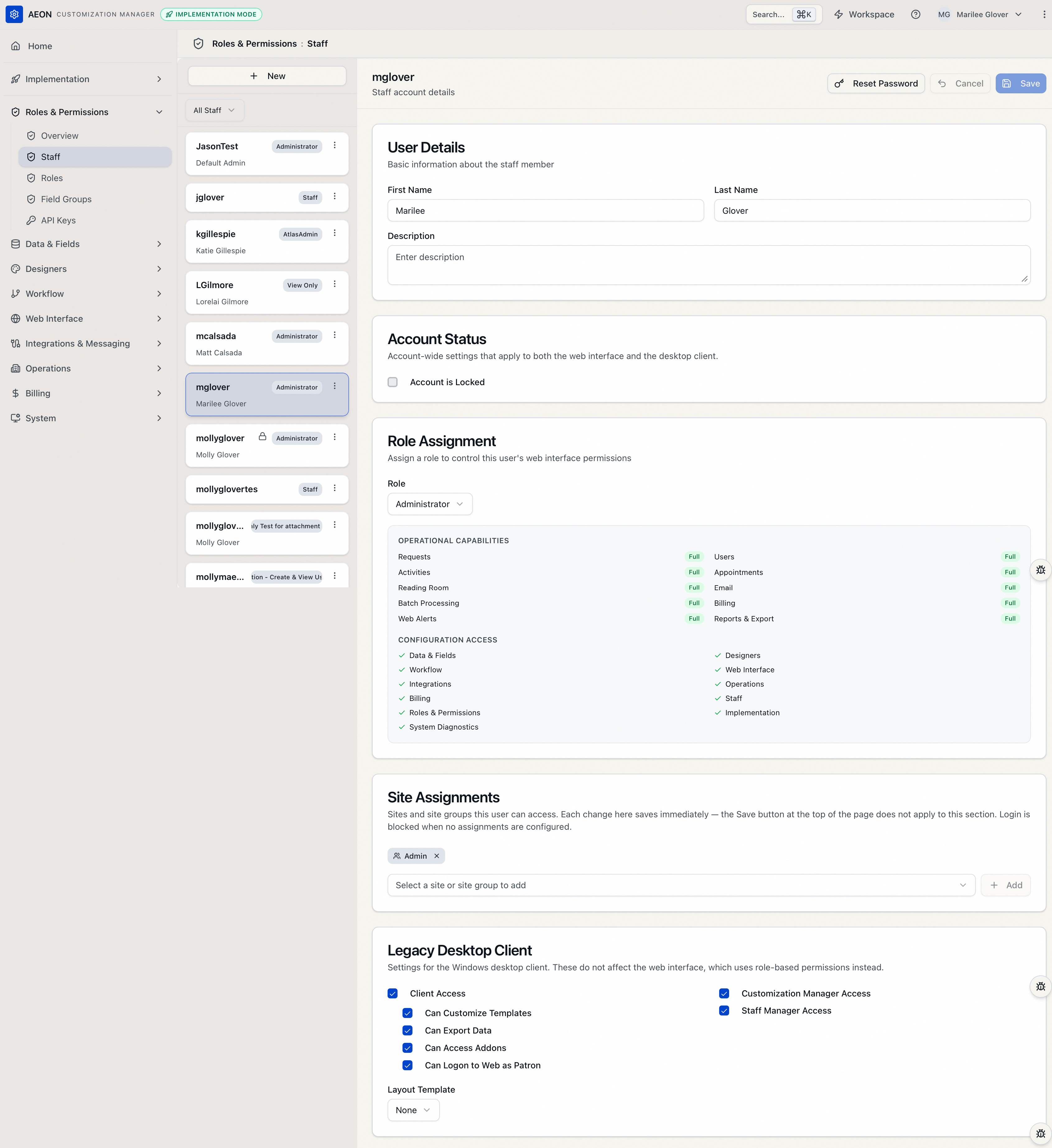
Use the filter dropdown above the list to narrow it down:
- All Staff — everyone.
- Unassigned — staff with no role assigned (these people effectively have no web permissions).
- A specific role — each role is listed with the number of staff currently assigned to it, for example Front Desk (6).
The filter dropdown narrows by role, not by name. To jump straight to a person by username, use the Customization Manager's search rather than scrolling the list.
Creating a staff account
- On the Staff tab, click New at the top of the list. The Create User dialog opens.
- Enter a Username (up to 50 characters). Aeon checks availability as you type and shows "Username is available" or "Username already exists" — you can't create a duplicate.
- Enter a Password, then re-enter it under Confirm Password. Aeon confirms "Passwords match" before it will let you continue.
- If your system has more than one site configured, pick a Site Assignment — either a site group or an individual site. This is required in a multi-site system: without a site assignment the new person can't log in. (In a single-site system this field doesn't appear.)
- Click Create.
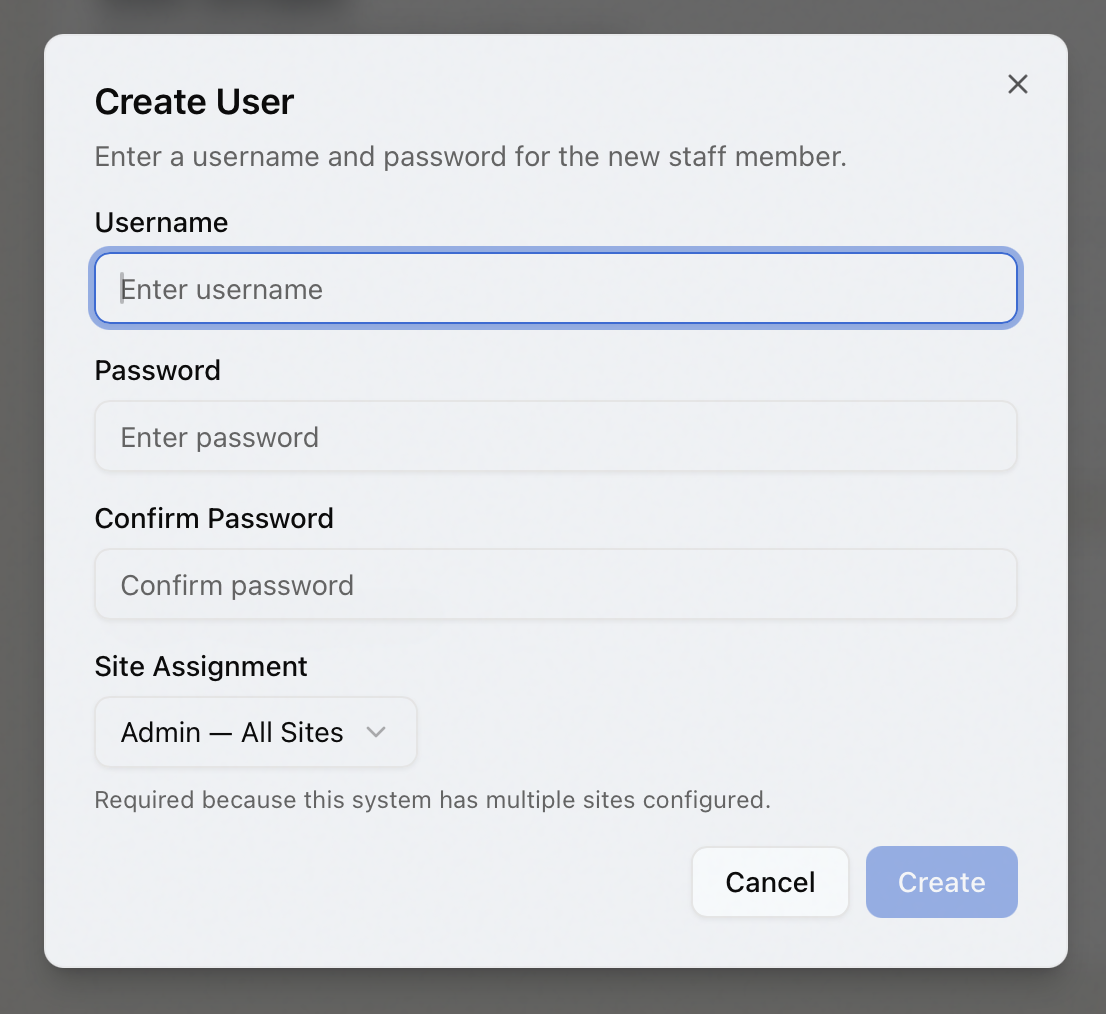
The new account appears in the list and opens in the detail pane so you can fill in the rest — name, description, role, and so on (see below). A new account starts with No Role, so assigning a role is usually your next step.
Creating the account only establishes the login. Web-client permissions come entirely from the assigned role, so until you assign one the person can sign in but has no permissions. The detail pane spells this out: "No role assigned — this user has no permissions in the web interface."
Filling in account details
With a staff member selected, the detail pane shows several cards. Edit any of them and click Save at the top right (or press Ctrl/Cmd + S). Cancel discards your edits.
User Details
- First Name and Last Name — the person's name (each up to 50 characters).
- Description — a free-text note, up to 100 characters. Handy for tagging a group, e.g. "Student employee."
Account Status
The Account Status card holds account-wide settings that apply to both the web interface and the desktop client. Its one control is the Account is Locked checkbox — the switch that deactivates an account, covered under Deactivating and reactivating an account below.
Role Assignment
Pick the staff member's Role from the dropdown. As soon as you select one, a capability summary appears showing exactly what that role grants — its operational capabilities (with each level shown as Full, Edit, View, or None), its configuration access, and any field restrictions. This lets you confirm you're giving the right level of access before you save.
Choose No Role to remove a role entirely.
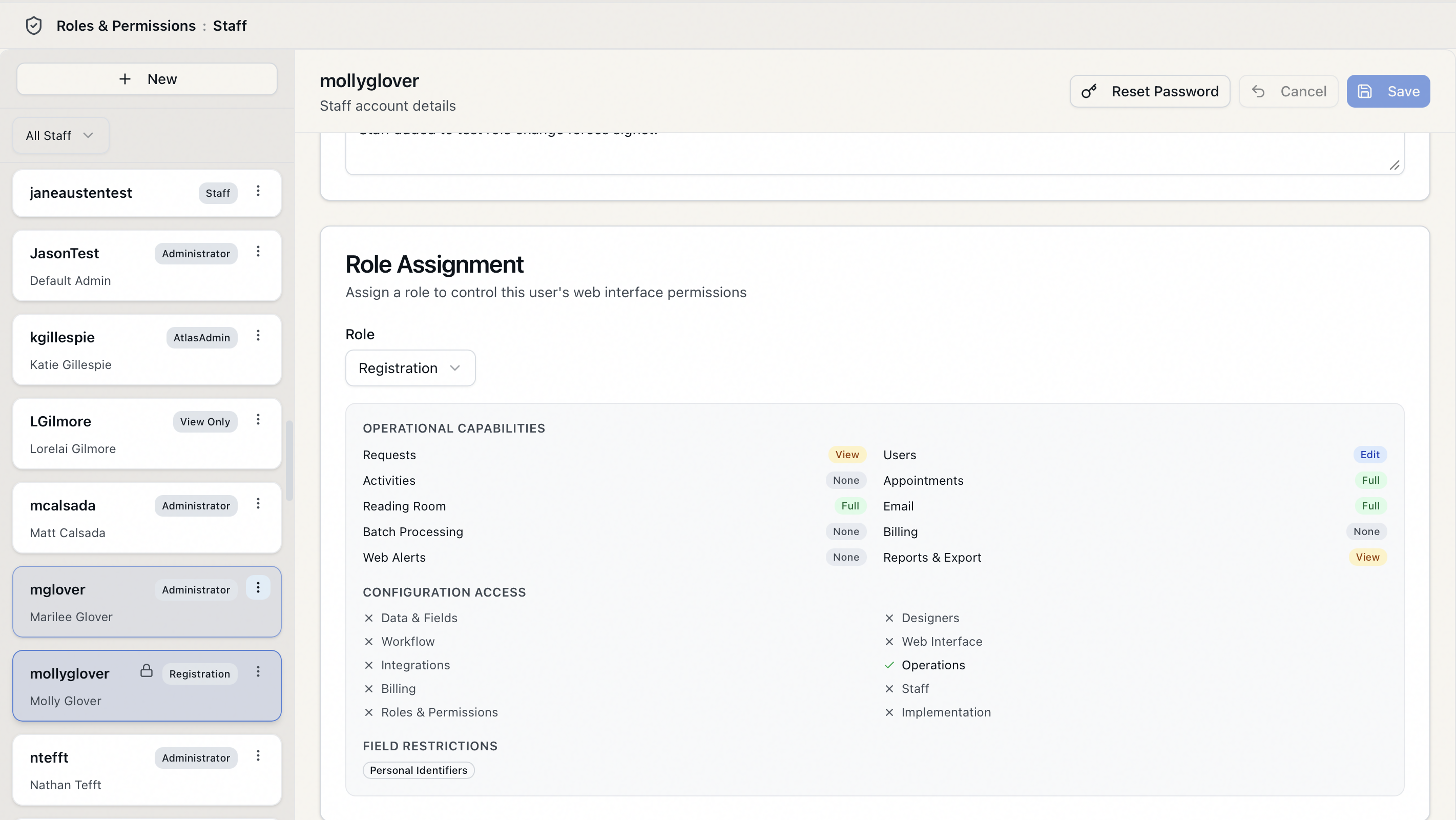
When you save a role change, Aeon clears the staff member's cached permissions and signs out their active sessions, so the new permissions apply right away. Expect that person to be prompted to log in again. This is intentional — it prevents anyone from keeping elevated access after their role has been reduced.
Site Assignments (multi-site systems only)
If your system has multiple sites, a Site Assignments card lists the sites and site groups this person can access. Add one by picking it from the dropdown and clicking Add; remove one with the × on its badge.
This card carries a "Saves automatically" badge for a reason: each add or remove takes effect immediately, independently of the Save button at the top of the page. The page-level Save does not apply to this section.
A staff member with no site assignment cannot log in. If you remove their last assignment, you've effectively cut off their access.
Legacy Desktop Client
The last card holds settings for the old Windows desktop client — Client Access and its sub-options (Can Customize Templates, Can Export Data, Can Access Addons, Can Logon to Web as Patron), plus Customization Manager Access, Staff Manager Access, and a Layout Template picker. Its own card description says it plainly: these "do not affect the web interface, which uses role-based permissions instead." Leave them as-is unless you still run the desktop client.
Resetting a staff member's password
Any administrator can set a new password for any staff account — you don't need to know the old one.
- Select the staff member in the list.
- Click Reset Password at the top of the detail pane. The Reset Password dialog opens, titled for that user.
- Enter the New Password and re-enter it under Confirm Password (Aeon confirms "Passwords match").
- Optionally tick Force user to change password on next login. When checked, the person is required to set their own password the next time they sign in.
- Click Reset Password.
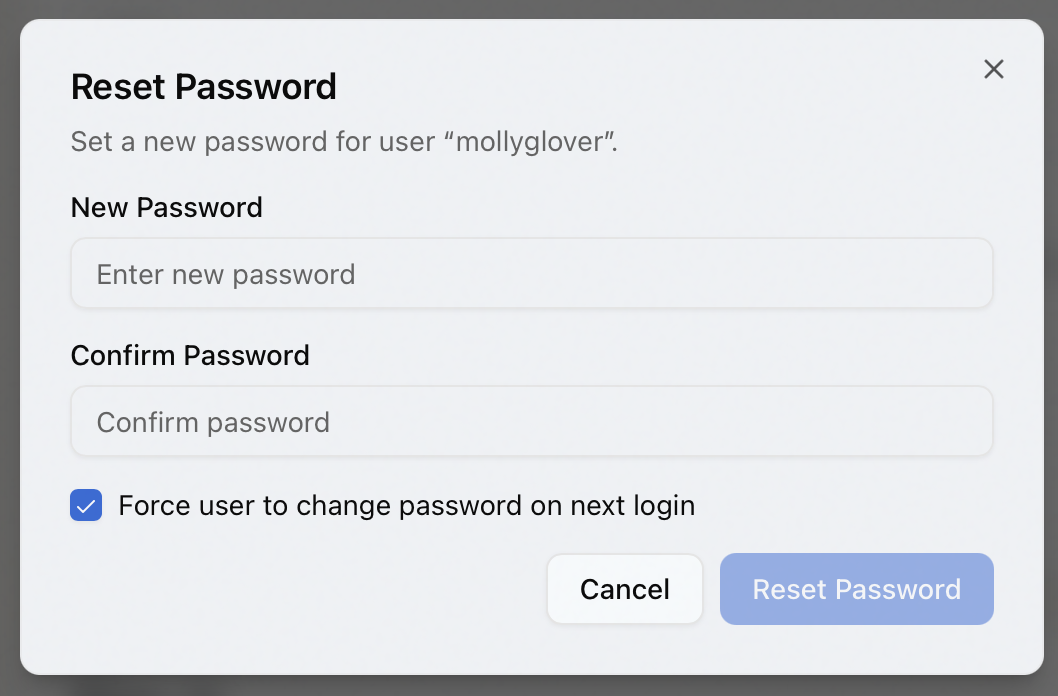
A password reset resets the account's failed-login count and unlocks it. So if someone is locked out and needs a new password, the reset handles both at once.
This dialog is for an admin resetting someone else's password. To change your own password, use the password option in your user menu — see Logging In and Changing Your Password.
Deactivating and reactivating an account
When someone leaves temporarily, deactivate their account instead of deleting it. Deactivating blocks login but keeps the account, its role, and all associated history intact.
- Select the staff member.
- In the Account Status card, tick Account is Locked.
- Click Save.
A locked account shows a padlock icon on its card in the list. The person can no longer sign in.
To bring them back, clear the Account is Locked checkbox and Save.
Aeon also locks an account automatically after too many failed login attempts (the threshold is set by the StaffLoginAttemptsBeforeLock customization key). You clear that the same way — uncheck Account is Locked and save, or simply reset the password, which also unlocks. Clearing the lock resets the failed-attempt counter.
Copying an account
Copying is the fast way to create a new account that should look like an existing one — same role, same site assignments, same desktop-client settings. It's most useful when you onboard groups of people who all need identical access, such as student workers.
- Find the account you want to copy in the list. Open the ⋮ menu on its card (or right-click the card) and choose Copy. The Duplicate User dialog opens.
- Enter a New Username (availability is checked as you type) and a New Password, confirmed.
- Click Copy.
The new account inherits the source account's first/last name, description, role, layout template, desktop-client settings, and site-group assignments. Open it afterward to adjust the name and anything else that should differ.
Deleting an account
When a staff member leaves for good, delete the account.
- Open the ⋮ menu on the staff member's card (or right-click it) and choose Delete.
- The Delete staff member confirmation appears, warning that the action can't be undone.
- Click Delete.
Deleting an account cannot be undone; to bring the person back you'd have to recreate the account from scratch. However, deleting a staff account does not remove the tracking history or notes tied to that person's work — that record stays in Aeon.
Aeon refuses to delete the account you're currently logged in as: "You cannot delete your own account." Have another administrator remove your account if it ever needs to go.
If you try to switch to another staff member, start a new account, or step away while you have unsaved edits, Aeon stops you with "Discard unsaved changes?" — choose Stay here to go back and save, or Discard changes to abandon them.