Editing a Field Restriction Group
A field restriction group is a named bundle of database fields — for example, the built-in Personal Identifiers group bundles a user's government ID and date of birth. When you assign a group to a role as a restriction, anyone in that role has those fields hidden throughout Aeon. Editing a group is how you adjust which fields it covers after the group already exists.
Most of the time you create a group once and leave it alone. You come back to edit it when your privacy or workflow needs change: a new custom field needs to be hidden from desk staff, a field no longer needs protecting, or the group's name no longer describes what it actually covers. Editing the group updates the restriction everywhere at once — every role that already restricts the group immediately starts hiding (or revealing) the changed fields.
- A new sensitive field (often a custom field you just defined) needs to be hidden from a role that already restricts an existing group — add it to that group.
- A field no longer needs protecting — remove it so restricted roles can see it again.
- The group's name or description has drifted from what it really covers — rename it for clarity.
Field restriction groups are managed in the Customization Manager under Roles & Permissions. Choose Field Groups from the left navigation (alongside Overview, Roles, and Staff). The left panel lists every group; the editor opens on the right when you select one.
Opening a group for editing
- Go to the Customization Manager and open Roles & Permissions → Field Groups.
- In the left panel, find the group you want to change. Each card shows the group name, a field count (for example, 5 fields), and — if any roles restrict it — a Used by 2 roles line.
- Click the card. The editor opens on the right, headed by the group's name.
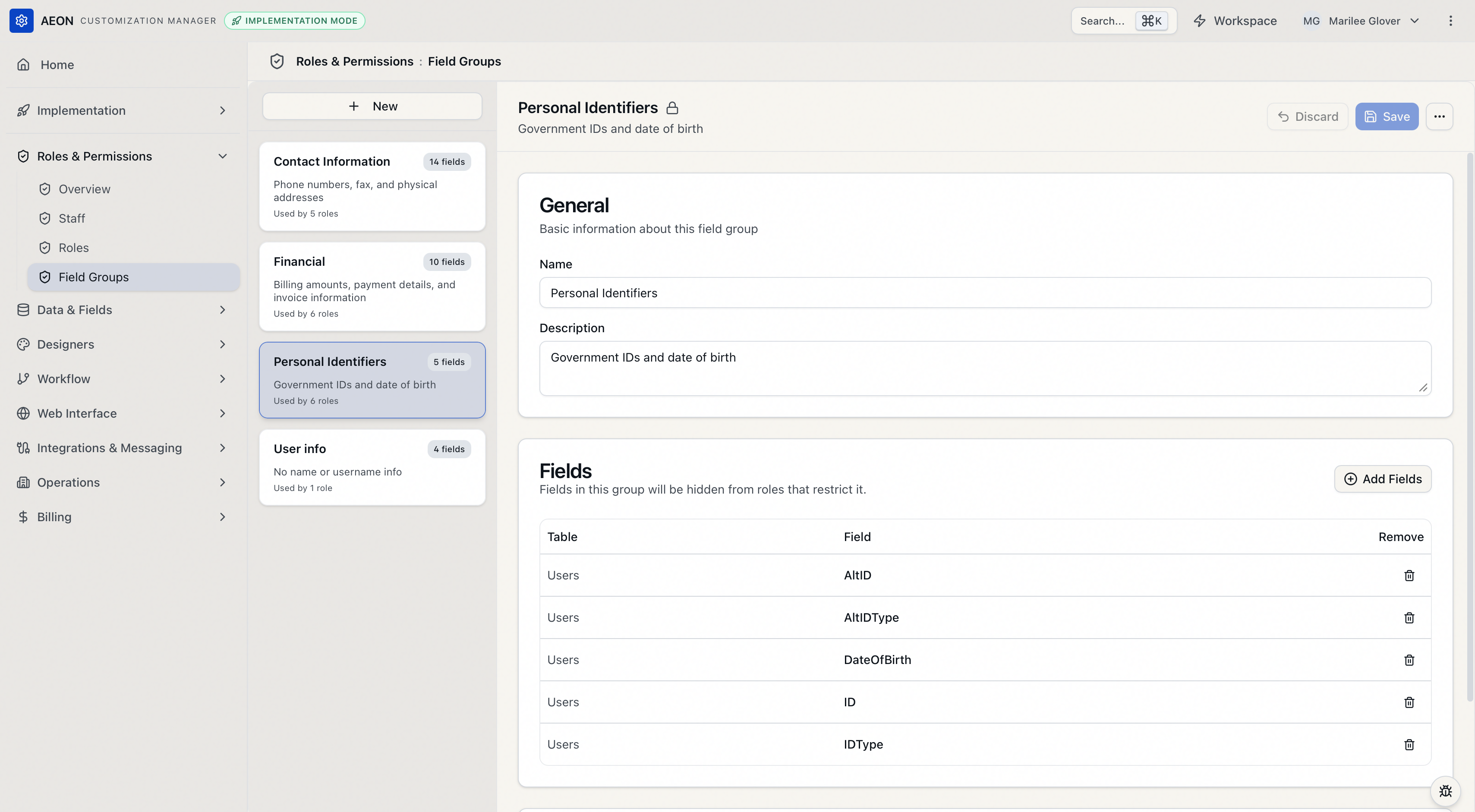
A small lock icon next to the name marks a system default group (the three built-in groups — Personal Identifiers, Contact Information, and Financial). See Editing system default groups below for how those differ.
The editor at a glance
The editor has three sections stacked top to bottom:
| Section | What it does |
|---|---|
| General | The group's Name and Description. |
| Fields | The list of fields the group covers, with an Add Fields button. This is the part you'll edit most. |
| Blocked Roles | A read-only list of the roles that currently restrict this group. You change these by editing the roles, not here. |
Across the top right are Discard and Save buttons, plus a ⋯ menu whose only item is Delete Field Group. Save and Discard stay greyed out until you actually change something. Delete Field Group is greyed out — with a tooltip telling you how many roles are involved — whenever a role currently restricts the group; you'd remove the restriction from those roles first. (System default groups can't be deleted at all; see Deleting a Field Restriction Group.)
Renaming a group or editing its description
- Open the group.
- In the General section, edit the Name field, the Description field, or both. The description is optional.
- Click Save. A confirmation appears: "Field group "<name>" saved."
Two field groups can't share a name. If you rename a group to one that's already taken, Aeon refuses the save with "A field group with this name already exists." Pick a different name and save again.
Adding fields to a group
- Open the group and find the Fields section.
- Click Add Fields (top right of the section). The Add Fields dialog opens.
- The dialog lists available fields grouped by database table (for example Users, Transactions). Click a table heading to expand or collapse it, or type in Search fields… to filter across all tables.
- Tick the checkbox next to each field you want to add. Fields already in the group appear greyed out and can't be re-selected.
- Click Add (the button shows the count, e.g. Add (3)). The dialog closes and the new fields appear in the Fields table.
- Click Save to commit. Until you save, the additions are pending and Discard will undo them.
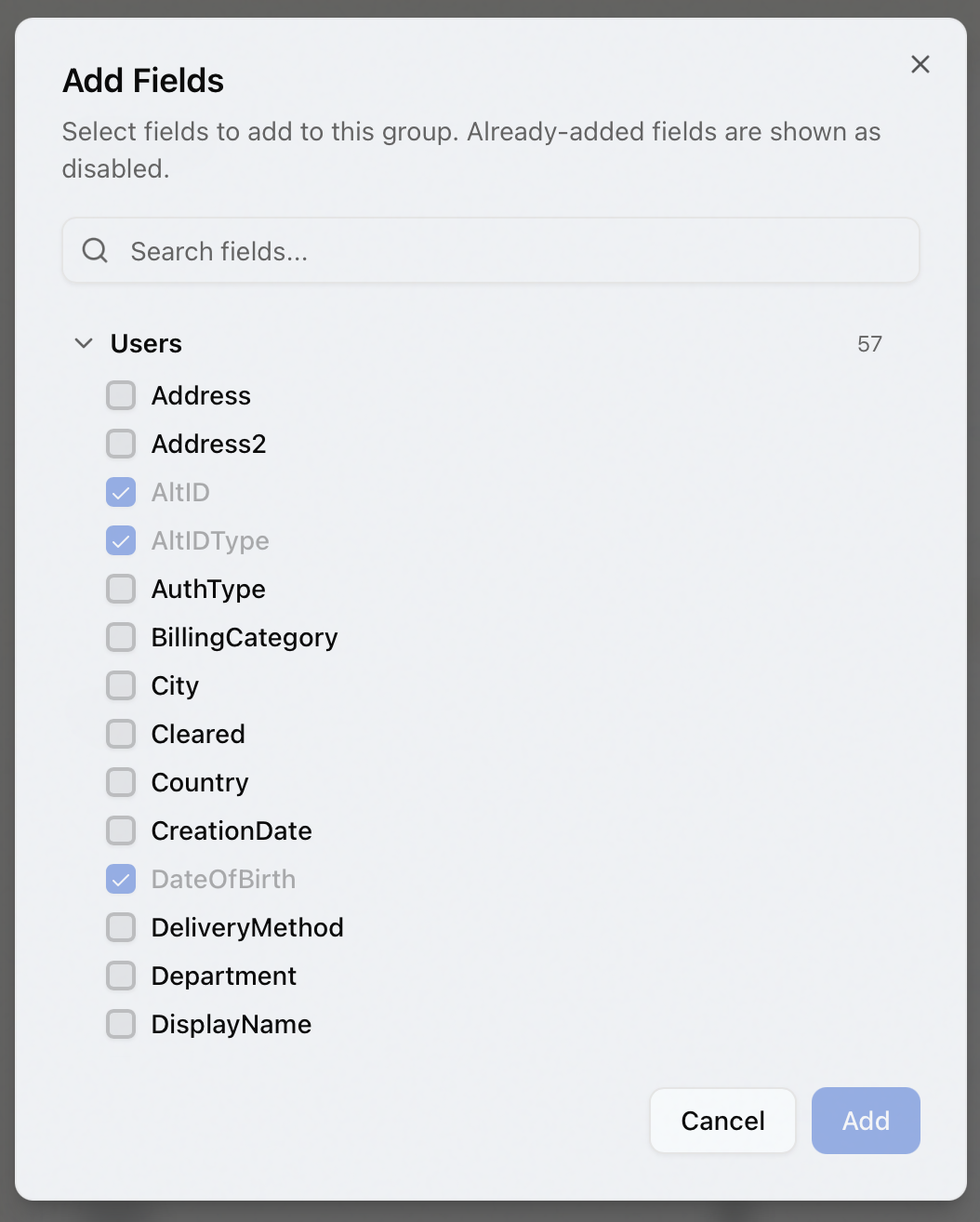
The fields you can choose are the columns Aeon is able to restrict, grouped by their database table, plus any custom fields you've defined for those records. Defining a new custom field automatically makes it available here; you don't configure it twice. If a field you expect is missing, it isn't one Aeon can restrict.
Removing fields from a group
- Open the group and find the Fields section.
- In the field row you want to drop, click the trash icon in the Remove column. The row disappears from the list.
- Click Save to commit. As with adding, removals are pending until you save — Discard reverts them.
The moment you save, every role that restricts this group stops hiding the field you removed — those staff can see it right away. Be deliberate about pulling a field (especially a PII field) out of a group that's in active use. The Blocked Roles section tells you which roles are affected.
Discarding changes
If you've made edits you don't want to keep, click Discard. The Name, Description, and Fields list snap back to what they were when you opened the group (or last saved). Discard only affects unsaved changes — it can't undo a previous save.
Editing system default groups
The three built-in groups — Personal Identifiers, Contact Information, and Financial — are marked with a lock icon. In the current build the lock is a visual marker only: you can still rename a system default group, change its description, and add or remove its fields the same way as any custom group. What you cannot do is delete a system default group (see Deleting a Field Restriction Group).
The built-in groups exist so that "Personal Identifiers," "Contact Information," and "Financial" mean the same thing on every Aeon site. If you change the fields inside one, you change what that label means for your installation. If you need a different bundle, it's usually clearer to leave the defaults alone and create a custom group instead.
Blocked Roles (read-only)
The Blocked Roles section lists every role that currently restricts this group, shown as badges. You can't change the associations from here — to add or remove a role's restriction, edit the role itself (under Roles & Permissions → Roles, in its Field Restrictions). This section is informational: it tells you, at a glance, who is affected by the edits you're about to make.
Editing field restriction groups lives behind the Roles & Permissions configuration capability. Only staff whose role grants that configuration access can reach the Field Groups tab and save changes; everyone else won't see this area of the Customization Manager.