Deleting a Field Restriction Group
A field restriction group is a named set of sensitive fields (for example, Social Security number or contact details) that a role can be configured to hide. Most of the time you create a group, assign it to one or more roles, and leave it in place. Deleting one is the rare cleanup step: you built a group you no longer use, you made a duplicate, or a policy changed and the group is now obsolete.
Deletion is permanent and there is no undo. Before Aeon will let a group go, it confirms two things: the group is one you created (the three built-in groups can't be deleted), and — for your own safety — that no role still depends on it. This page covers both the normal delete and what to do when a group is still in use.
- You created a custom field group for a one-off need and no longer want it cluttering the list.
- You made a duplicate group by mistake and want to remove the extra.
- A data-handling policy changed, the group is obsolete, and you've already removed it from every role that used it.
Field restriction groups are managed in the Customization Manager under Roles & Permissions → Field Groups. The left panel lists every group; selecting one opens its editor on the right.
Before you delete: two things Aeon checks
| Condition | Effect |
|---|---|
| The group is a system default (Personal Identifiers, Contact Information, Financial) | It cannot be deleted at all. These are included with Aeon by default; open one and you'll see a small lock icon next to its name in the editor header. |
| The group is assigned to one or more roles | The Delete action is blocked until you remove the group from every role that restricts it. |
Both checks exist to stop you from quietly breaking a role's privacy configuration. A custom group that isn't used by any role can be deleted freely.
Deleting a group
There are two ways to start a deletion — pick whichever you're closer to.
From the list (right-click)
-
Go to Customization Manager → Roles & Permissions → Field Groups.
-
In the left panel, find the group you want to remove — say, a custom group called Donor Details.
-
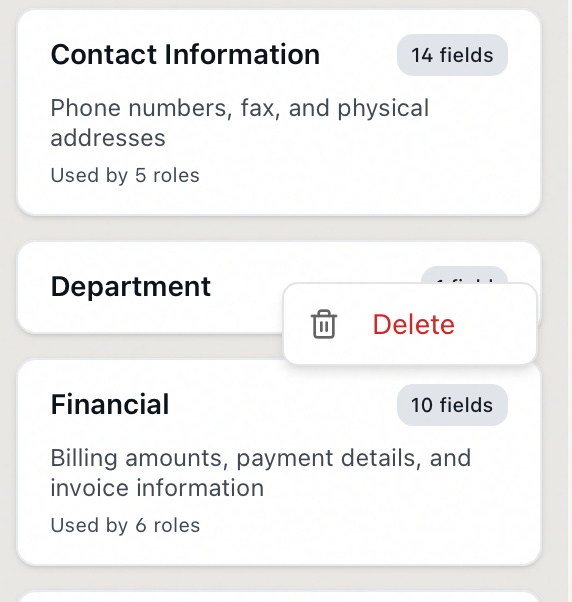
Right-click the group's card and choose Delete.
-
A confirmation dialog titled Delete field group asks: "Are you sure you want to delete the field group "Donor Details"? This action cannot be undone."
-
Click Delete to confirm, or Cancel to back out.
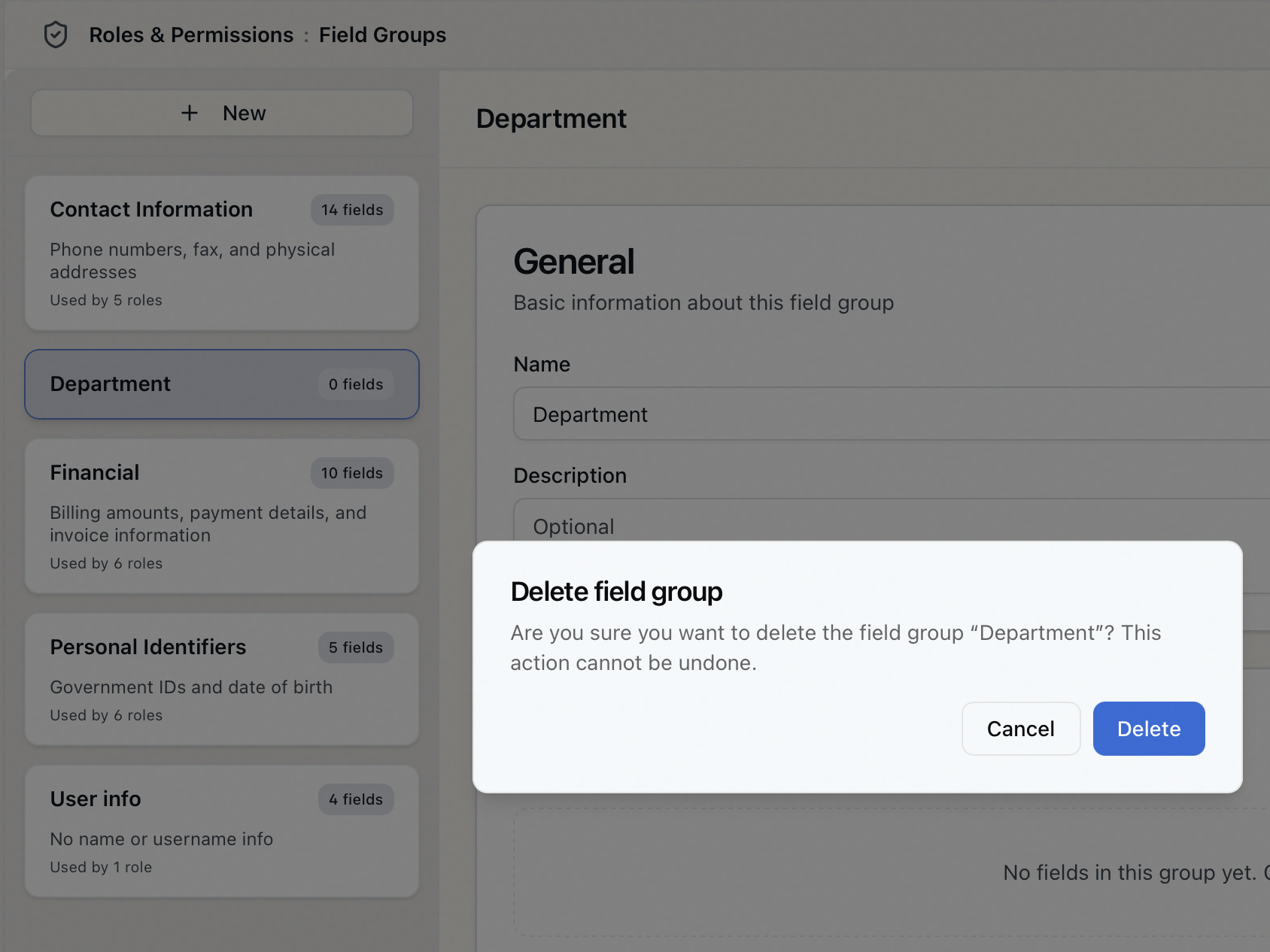
On success a brief message confirms "Field group "Donor Details" deleted." and the group disappears from the list. If that group was open in the editor, the editor clears.
From the editor (overflow menu)
- Select the group in the left panel so it opens in the editor on the right.
- In the editor's header, click the … (more options) button next to Save.
- Choose Delete Field Group.
- The same Delete field group confirmation dialog appears. Click Delete to confirm.
When a group is still in use
If a group is restricted by at least one role, Aeon won't let you delete it yet:
- In the list's right-click menu, Delete is greyed out.
- In the editor's … menu, Delete Field Group is greyed out, and hovering it shows a tooltip such as "In use by 2 roles — remove from all roles before deleting."
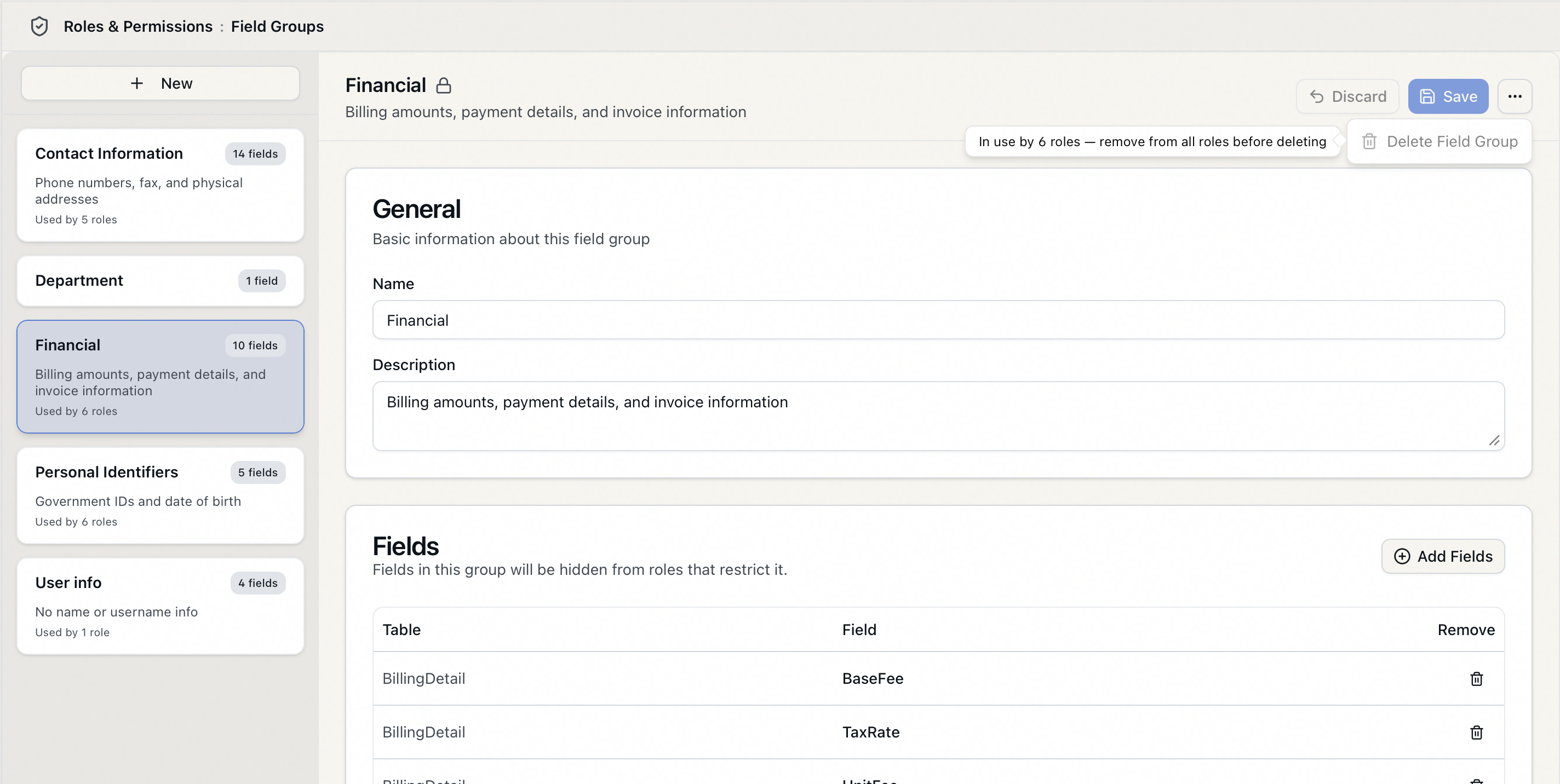
To find out which roles are involved, open the group in the editor and look at the Blocked Roles card near the bottom. It lists every role that currently restricts the group (and its description reminds you: "Roles that restrict this field group. Edit roles to change these associations.").
To clear the way for deletion:
- Note the roles listed under Blocked Roles.
- Open each of those roles and remove this group from its restrictions. (See Editing a Role: Field Restrictions.)
- Return to Field Groups. With no roles restricting it, the group's Delete action is now enabled.
- Delete the group as described above.
Taking a field group off a role un-hides those fields for everyone with that role. That's usually the point — but make sure exposing those fields is acceptable before you remove the restriction, especially for groups covering personal or financial data.
System default groups can't be deleted
The three built-in groups — Personal Identifiers, Contact Information, and Financial — are part of Aeon's standard privacy setup and are protected. They show a lock icon in the editor header, and the system rejects any attempt to delete them with the message "System default field groups cannot be deleted."
If a default group covers more (or fewer) fields than you want, edit a custom group instead, or assign restrictions per role — don't try to remove the defaults.
There's no recycle bin for field groups and no undo. The confirmation dialog spells this out. If you might need the same grouping again, consider leaving it in place (unassigned groups are harmless) rather than deleting and rebuilding it later.
Managing field restriction groups — including deleting them — requires the Roles & Permissions configuration capability. Staff whose role doesn't grant that capability won't see the Roles & Permissions area of the Customization Manager at all.