Protecting Against Lockout: One-Admin Minimum
The Roles & Permissions configuration capability is what lets a role open this part of the Customization Manager and edit roles, field groups, and staff role assignments. It is the "keys to the building." If it ever gets taken away from everyone, no one can grant it back — there's no one left with access to the screen that hands it out.
To prevent exactly that, Aeon refuses to save any role change that would leave no working administrator. You almost never see this guard: it only fires on the specific edit that would remove the last path to admin access. The rest of the time you edit roles freely. When it does fire, Aeon blocks the save and tells you why, so you can fix the order of operations and try again.
- You're tightening up a role and uncheck Roles & Permissions on the role that happens to be the only one with admin access — Aeon stops the save.
- You uncheck Roles & Permissions on your own role — Aeon stops you before you lock yourself out of this screen.
- You delete an admin role (or reassign its staff to a non-admin role) and that would leave no administrators with staff — Aeon stops the deletion.
- You change a staff member's role — your own, or the last administrator's — from an admin role to one without admin access, on the Staff or Members page. Aeon stops the change. This is the most common way to trip the guard.
What counts as an "administrator"
For this guard, an administrator is any role that has the Roles & Permissions box checked under Configuration Capabilities and has at least one staff member assigned to it. A role with admin access but zero members doesn't count — it can't actually administer anything, so Aeon ignores it when deciding whether a working administrator remains.
That distinction matters in the examples below: granting a second role admin access isn't enough on its own if nobody is assigned to it.
Open Customization Manager → Roles & Permissions, select a role, and go to the Configuration tab. The Configuration Capabilities list has one checkbox per Customization Manager area. The relevant one here is Roles & Permissions ("Role definitions, field groups, and staff role assignments"). Checking it makes the role an administrator; unchecking it removes admin access.
Guard 1 — You can't lock yourself out
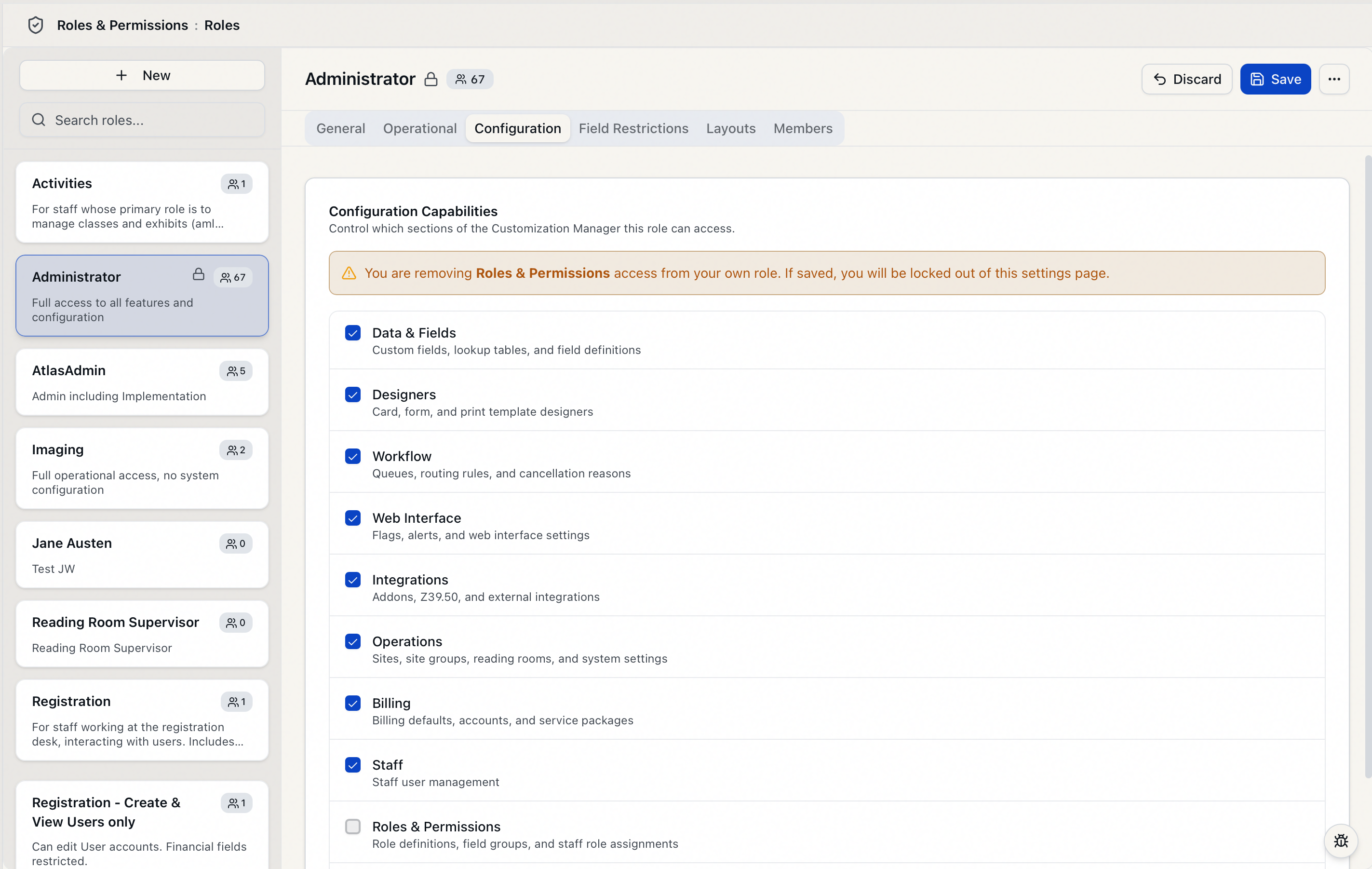
If you uncheck Roles & Permissions on the role you're currently signed in under, Aeon warns you immediately — before you even save.
-
Open your own role and go to the Configuration tab.
-
Uncheck Roles & Permissions.
-
An amber warning appears in place:
You are removing Roles & Permissions access from your own role. If saved, you will be locked out of this settings page.
-
If you click Save anyway, Aeon rejects the change. The reason it reports is:
Cannot remove Roles & Permissions access from your own role. This would lock you out of the admin UI.
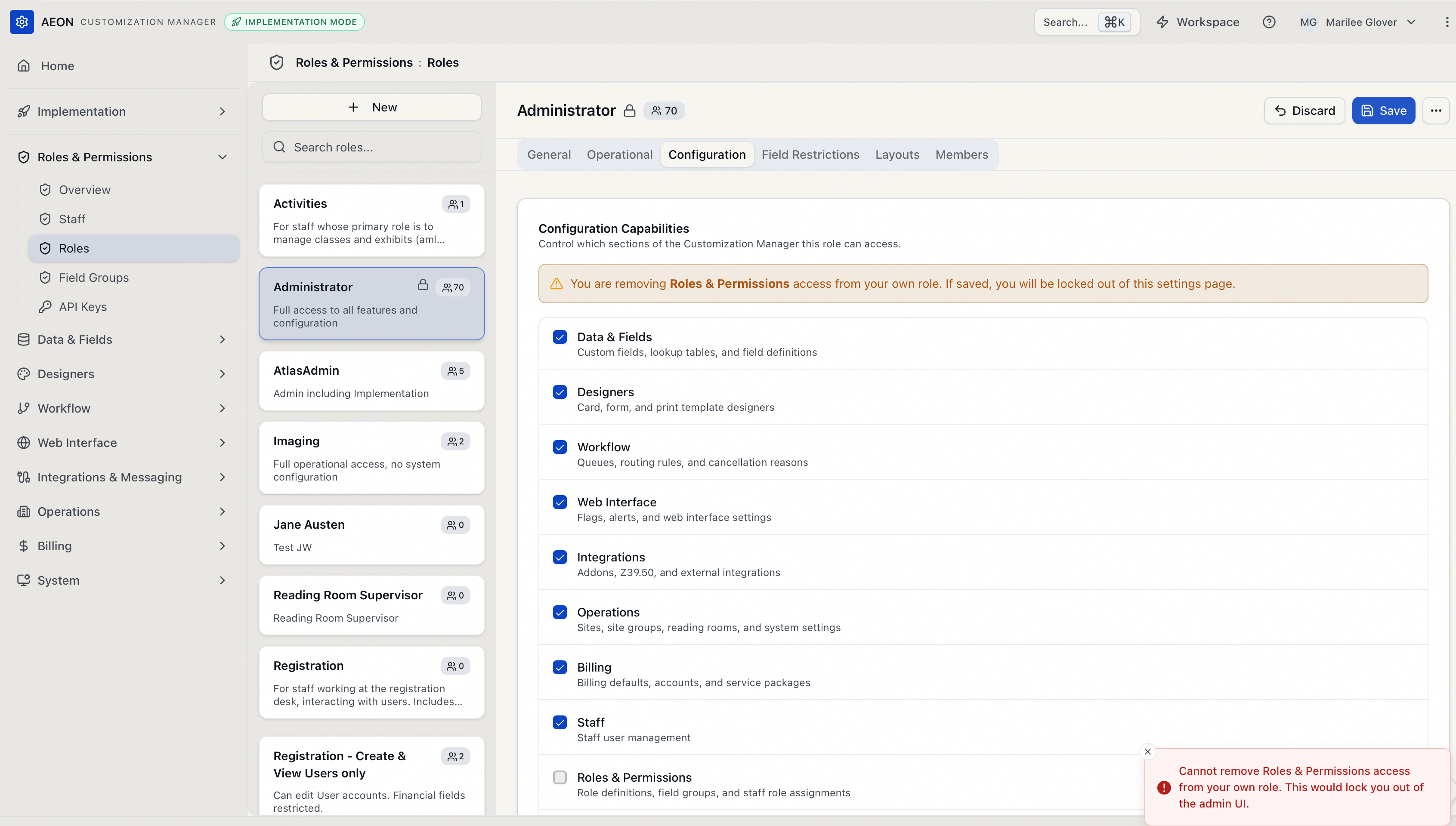
The role isn't changed. Re-check the box (or click Discard) and the warning clears.
This check is about you specifically — it protects you from cutting off your own access mid-session, regardless of how many other administrators there are. If you genuinely need a different role to lose admin access, edit that role, not the one you're signed in under. If you want to step yourself down, have another administrator make the change to your role after you're sure someone else can still get in.
Guard 2 — You can't remove the last administrator
This is the core "one-admin minimum." When you uncheck Roles & Permissions on a role that currently has it, Aeon checks whether any working administrator would be left. If not, it blocks the save with one of two messages depending on the situation:
-
If no other role has admin access at all:
Cannot remove Roles & Permissions access from this role. It is the only role with admin access. Grant another role Roles & Permissions access first.
-
If another role has admin access but no staff are assigned to it:
Cannot remove Roles & Permissions access from this role. No other role with admin access has any staff assigned. Assign staff to another admin role first.
In both cases the change is rejected and the role keeps its admin access.
Example
Say Administrator is currently the only role with Roles & Permissions checked, and you want to move admin duties to a new Library Supervisor role:
- Create or open Library Supervisor and check Roles & Permissions on its Configuration tab. Save.
- On the Members tab, assign at least one staff member to Library Supervisor (or assign that role to the staff member from Staff). Now there are two working administrators.
- Now you can open Administrator, uncheck Roles & Permissions, and save — Aeon allows it, because a working administrator (Library Supervisor, with staff) still remains.
The fix is always the same shape: establish the replacement administrator first, then remove the old one.
Through the role editor, this exact message is hard to reach: unchecking Roles & Permissions on your own role trips Guard 1 first, and for any other role your own admin role still counts as a working administrator, so one always remains. The path that actually reaches the last-admin limit is changing a staff member's role assignment — moving your own account, or the last admin, to a non-admin role. That's covered in Guard 4 below.
Guard 3 — You can't delete the last administrator
The same protection applies when you delete a role rather than just unchecking its box.
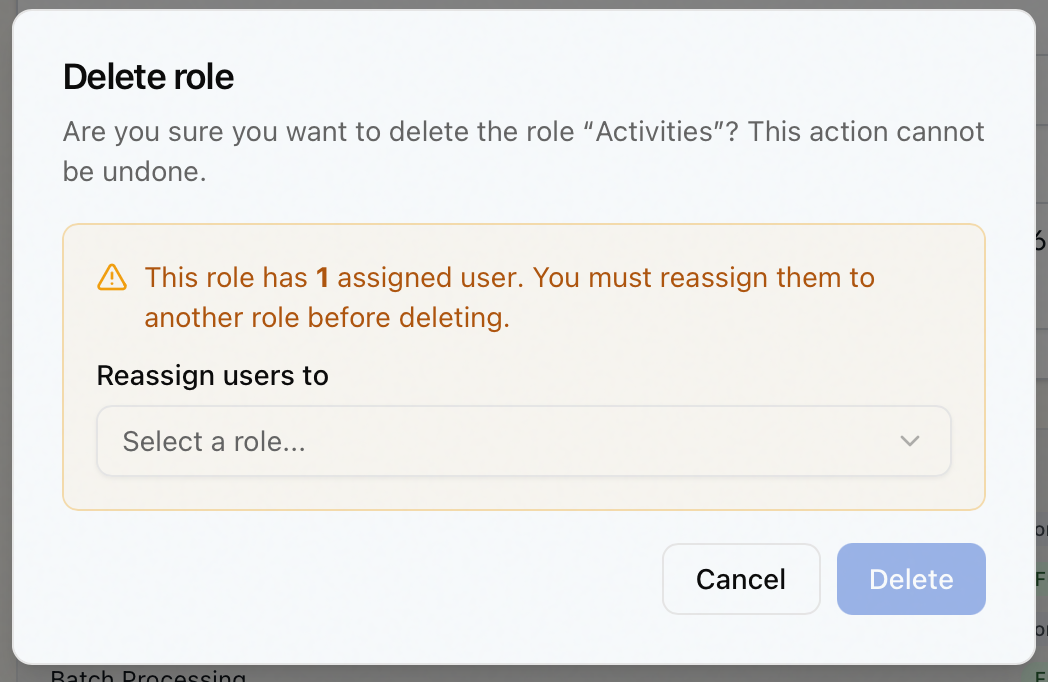
A role that still has staff can't be deleted until you reassign those staff to another role. The Delete role dialog requires it:
-
From the role editor, open the ⋯ menu and choose Delete Role (system default roles don't offer this option and can't be deleted).
-
If the role has members, the dialog shows how many and presents a Reassign users to dropdown. Pick the destination role. The Delete button stays disabled until you choose one.
-
Confirm with Delete.
If the role you're deleting is an administrator and you reassign its staff to a role without admin access, Aeon checks whether any other administrator-with-staff would remain. If not, it blocks the deletion:
Cannot delete this role. It is the only role with Roles & Permissions access that has assigned staff. Reassign users to a role with admin access, or grant another role admin access first.
As the message says, you have two ways forward: reassign the staff to a role that already has admin access, or grant admin access to another role (with staff) before deleting this one.
Guard 4 — The same limits apply when you reassign staff roles
Guards 1 and 2 also fire from the other direction — not by editing what a role can do, but by changing which role a staff member belongs to. Moving someone from an admin role to a non-admin one removes their admin access just as surely as unchecking the box, so Aeon runs the same self-lockout and last-admin checks. As noted above, this is the path most people actually hit.
There are two places you can reassign a role:
- Staff — open a staff member, change their Role, and Save.
- Roles & Permissions → a role → Members — Assign staff into a role, or Remove them from one.
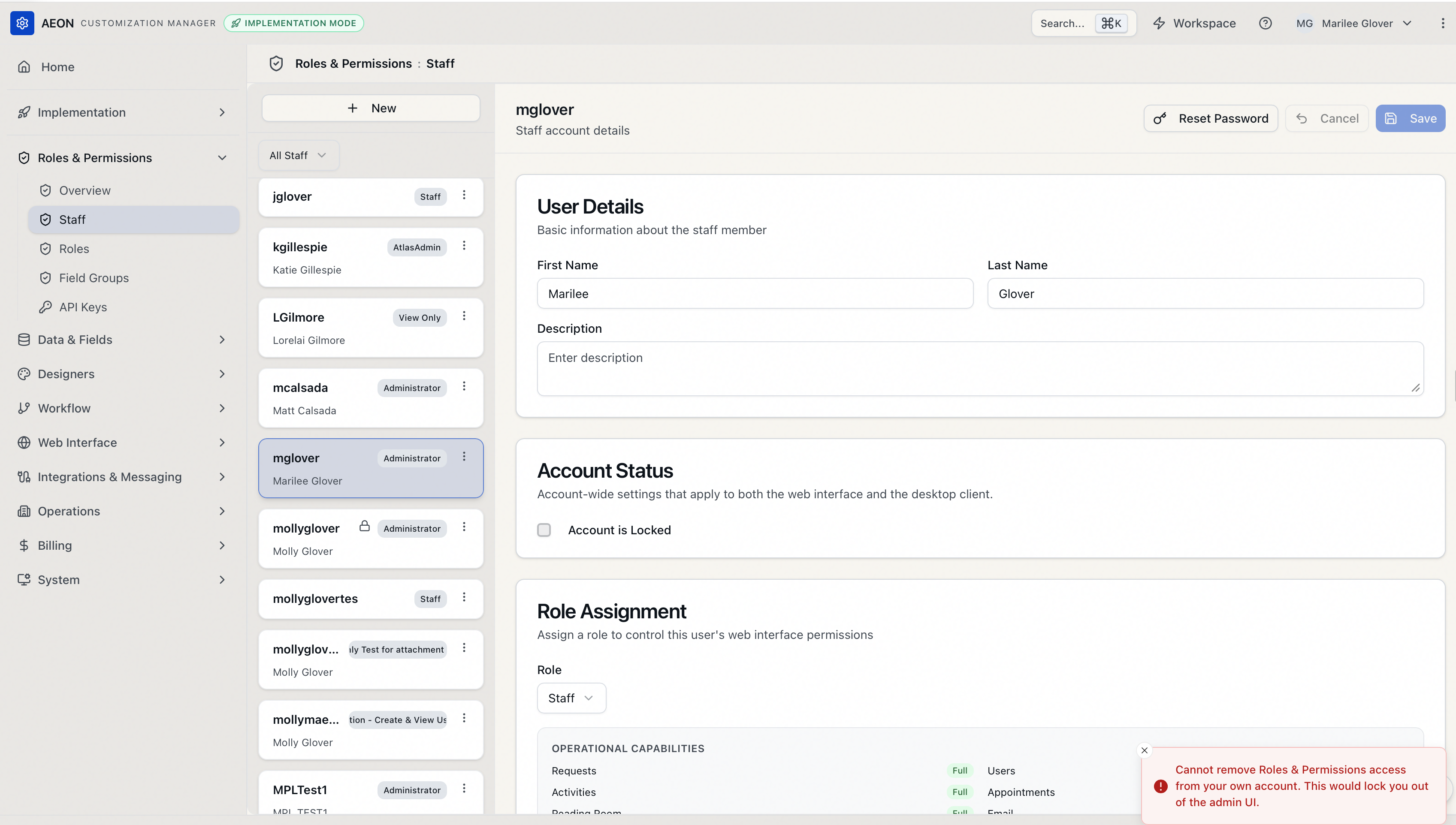
Changing your own account to a role without Roles & Permissions is blocked before it can lock you out:
Cannot remove Roles & Permissions access from your own account. This would lock you out of the admin UI.
Moving the last administrator off their admin role — when no other staff member would be left with admin access — is blocked too:
This operation would remove Roles & Permissions access from all staff members. At least one staff member must retain admin access.
The change is rejected and the staff member keeps their current role. The fix is the same as everywhere else on this page: make sure another staff member already has an admin role before you move this one.
These checks only guard the removal of the last admin access. Adding a staff member to an admin role — or moving someone to a role that still has Roles & Permissions — never trips the guard, because it can't reduce the number of working administrators.
The amber "your own role" notice appears in the UI as an early warning, but every one of these checks is enforced when you save or delete — not just in the browser. You cannot bypass the one-admin minimum by reloading, editing through a different screen, or any other route. Aeon will reject the change and leave the data untouched. This is intentional: it's the safety net that guarantees someone can always get back into Roles & Permissions.
Editing roles — including everything on this page — requires the Roles & Permissions configuration capability. That's the same capability these guards protect. Staff without it don't see the Roles & Permissions section of the Customization Manager at all.
When you save a role's capabilities, Aeon refreshes the sessions of everyone assigned to that role so the new permissions take effect right away. Affected staff may need to sign in again. That's expected — it's how a permission change reaches people who are already working.