Activity Notes and History
Most of the time you don't go looking for an activity's notes or history — you open the activity to edit its details, process its requests, or manage its members. But two of the tabs on the activity record exist purely to capture context over time:
- Notes is where staff jot down anything worth remembering about the activity — a special instruction from a professor, a reason a date moved, a heads-up for the next person who handles it. You write these by hand.
- History is the activity's automatic audit log. You never type into it; Aeon writes an entry every time the activity changes — date edits, users added or removed, the activity being cloned, and so on. You read it to answer "what happened to this activity, and when?"
Open an activity (see Opening and Viewing Activities) and switch to the Notes or History tab at the top of the detail view.
- A colleague needs to know why an activity's end date changed, or a class was rescheduled — add a note so it's recorded on the activity itself instead of in email.
- You're picking up an activity someone else set up and want the back-story — read the notes.
- You need to confirm when a user was added, when dates were changed, or whether the activity was cloned from another — check the History tab.
These are two different things. Notes are free text that staff write and can delete. History is generated by Aeon automatically and can't be edited or removed — it's the record of what actually happened. In the older desktop client, notes lived in a small box on the Details tab; in Aeon 7 they have their own tab so they're easier to read and add to.
Activity notes
Reading notes
On an activity, click the Notes tab. The tab heading shows the count — for example, Notes (3) — and the tab itself carries a small badge with the same number so you can see at a glance whether an activity has any notes without opening the tab.
Each note is shown as its own card, newest grouping at the top, with:
- the username of the staff member who wrote it,
- the date and time it was written (for example, Jun 4, 2026 2:15 PM), and
- the note text itself.
If the activity has no notes yet, the tab shows No notes for this activity.
Adding a note
- Open the activity (for example, activity #4821) and go to the Notes tab.
- Click Add Note in the top-right of the Notes card. A text box appears with the placeholder Enter note… and the cursor already in it.
- Type your note — for example, "Professor Lee asked us to hold these items through the end of the spring term — do not reshelve before June 1."
- Click Add Note to save, or Cancel to back out without saving. While it saves, the button reads Adding….
The new note appears in the list immediately, stamped with your username and the current date and time. The note count on the tab updates to match.
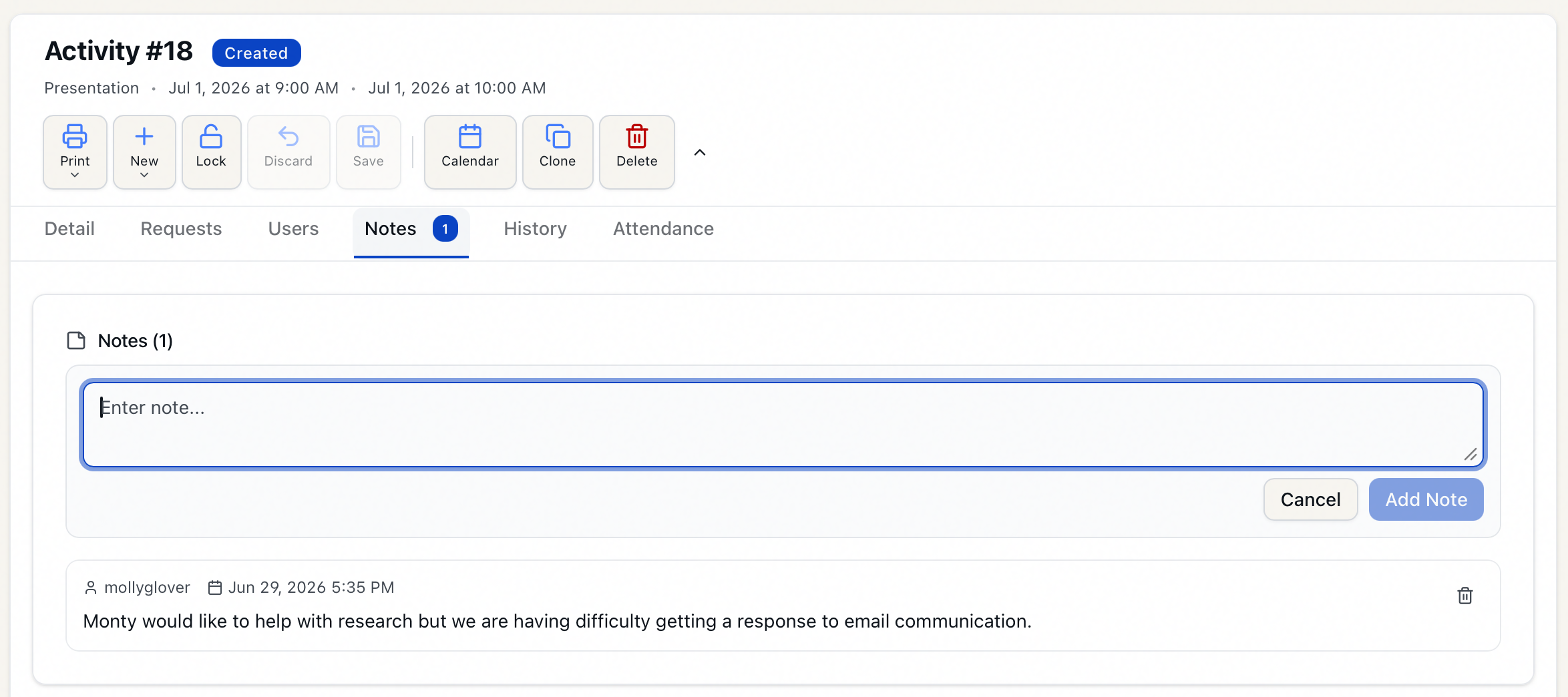
The Add Note button stays disabled until you've typed something. Whitespace alone doesn't count.
Deleting a note
Each note card has a trash-can icon in its top-right corner. Click it to remove that note. The deletion takes effect right away and the count updates.
There's no confirmation step and no undo. Once you delete a note it's gone. Notes are also not the same as the History log — removing a note does not remove the corresponding entries from the History tab.
Activity history
Click the History tab to see the activity's audit log. The heading shows the total — for example, Activity History (12).
Each entry is a card showing:
- a type label (a small badge — for example, the kind of change recorded),
- the date and time the change happened,
- a short description of what changed, and
- the username of whoever made the change, when Aeon recorded one.
Entries are listed newest first and cover the lifecycle of the activity — things like changes to the Begin Date and End Date, users being added to or removed from the activity, and the activity being cloned from (or into) another. This is the same kind of audit trail the desktop client kept; in Aeon 7 it's presented as a scrollable, timestamped list.
If nothing has been logged yet, the tab shows No history entries for this activity.
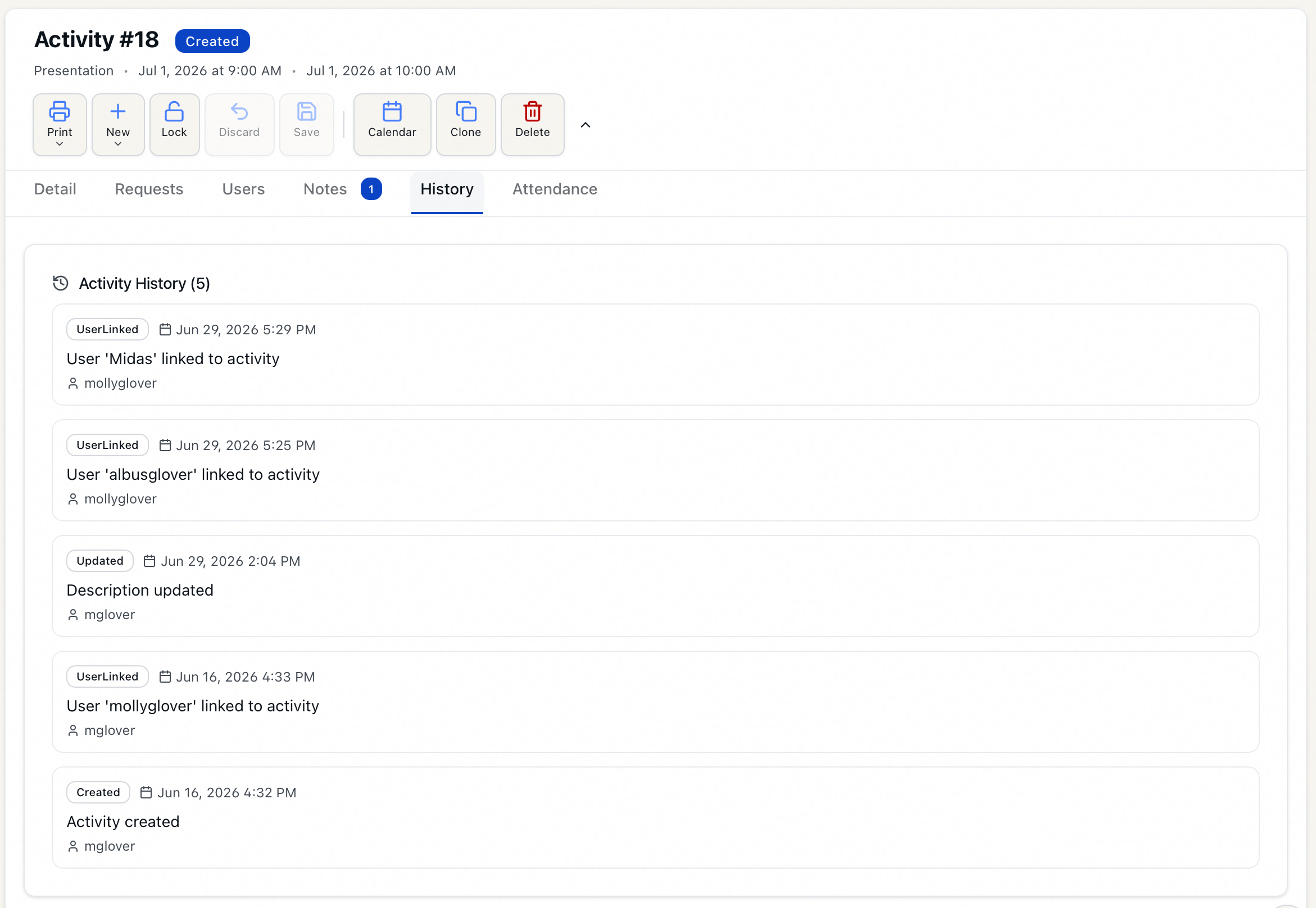
You can't add, edit, or delete History entries — the tab is purely for reading. Aeon writes the entries for you as the activity changes. If a tab ever fails to load, use the Retry button to fetch it again.
- Reading the Notes and History tabs requires the View level of the Activities permission — anyone who can open the activity can read them.
- Adding a note requires the Edit level.
- Deleting a note requires the Full level — the same higher bar as deleting an attendance record, so notes aren't erased casually. (The trash icon is shown to everyone, but the server refuses the deletion below Full.)
- History is read-only for everyone; there's nothing to permission beyond viewing it.