Creating Requests from a File for an Activity
Activities — classes, tours, exhibits, and group visits — often need the same set of materials pulled for everyone. Rather than typing each request by hand, you can hand Aeon a spreadsheet that lists the items and let it create all the requests in one pass. This is the fastest way to stand up the requests behind an activity when an instructor or curator gives you a reading list.
You upload an Excel or CSV file, Aeon parses it and shows you a preview, you choose which linked user the requests belong to, and then Aeon creates one request per row and links them all to the activity. It's an all-or-nothing operation: if any row fails validation, nothing is created and you're told what to fix.
- An instructor or curator gives you a list of items for a class or group, and you want to create the requests in bulk instead of one at a time.
- You already have the items in a spreadsheet (for example, exported from a finding aid, a catalog, or a previous activity) and want to turn each line into an Aeon request.
- You're setting up a new activity and need its requests created quickly for one of its members.
Before you start
A few things have to be true before the option is available:
- The activity must already have at least one linked user. The new requests are created for a specific person, and you can only choose from users linked to the activity. If no users are linked yet, link one first (see Managing Activity Members and Attendance) — until then the menu item is disabled.
- You need edit access. The action is available to staff with Edit access to both Requests and Activities. View-only roles won't see an enabled button.
- The activity can't be locked by someone else. If a coworker is processing the activity, the toolbar's New options are disabled until they release it. See Opening & Locking a Request for how locks work.
Preparing your file
Aeon accepts Excel (.xls, .xlsx) and CSV (.csv) files, up to 10 MB.
The first row of the file is treated as column headers, and every header has to match a field Aeon understands:
- A request (transaction) field — for example
ItemTitle,ItemAuthor,CallNumber,ItemVolume,Location,DocumentType. Each column maps to that field on every request created. - A custom field — the short name of any transaction custom field your site has defined.
If the file contains a column whose name doesn't match a request field or a custom field, Aeon stops and lists the offending names so you can rename or remove them.
The file describes the items, not who they're for. You pick the owner once, in the dialog, and it applies to every row. You also don't need to add a Site column — on multi-site systems Aeon fills it in for you.
Aeon ignores completely empty rows, so trailing blank lines won't create empty requests. If an Excel workbook has more than one worksheet, only the first sheet is used and you'll see a warning saying so.
Step 1 — Open the dialog
- Open the activity and go to its detail view.
- In the toolbar, click the New button's dropdown (next to New Request).
- Choose New Requests from File.
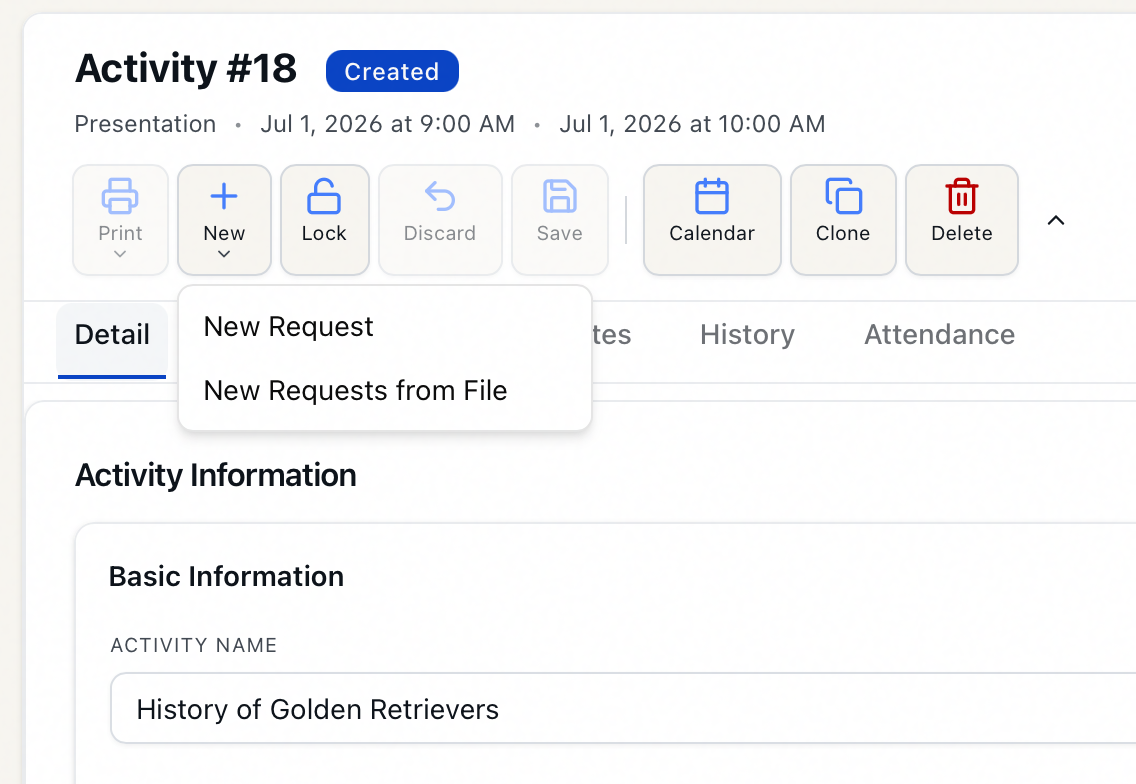
The New Requests from File dialog opens, headed "Creating requests for activity #..." with the activity's ID.
Step 2 — Choose and parse the file
- Click Browse Files and select your spreadsheet. The dialog shows the file name and size, with a Remove option if you picked the wrong one.
- Click Parse File.
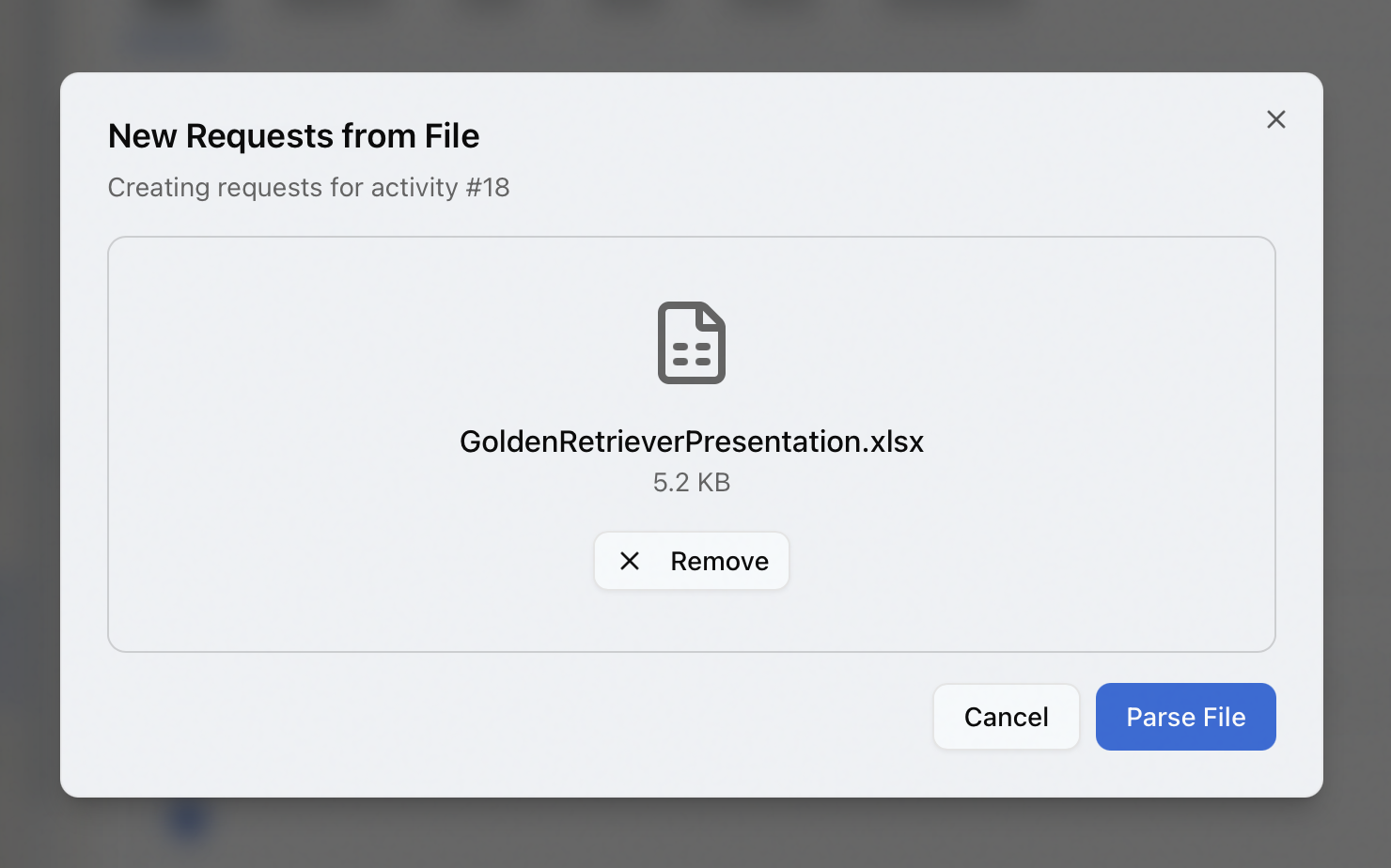
Aeon reads the file and validates the columns:
- If everything checks out, you move to the preview.
- If a column name isn't recognized, you'll see "Invalid column names: …" listing each one. Fix the headers in your file and parse again.
The parse step confirms the file is readable and the headers are valid. It does not yet validate the data in each row — that happens when you create the requests in Step 4. A clean preview doesn't guarantee every row will pass.
Step 3 — Review the preview and pick the owner
The preview shows what Aeon read from the file:
- The file name and total row count (for example, "roster.xlsx — 42 rows").
- Any warnings (such as the multiple-worksheets notice).
- A Request owner dropdown listing the activity's linked users. The first linked user is selected by default; change it to whoever the requests should belong to.
- A scrollable table of the parsed rows. To keep the preview readable, it shows the first five columns and up to the first 50 rows — if there are more, you'll see a "+N more" column header and an "… and N more rows" line. The rest are still created; they're just not all shown here.
Confirm the row count and owner look right before continuing.
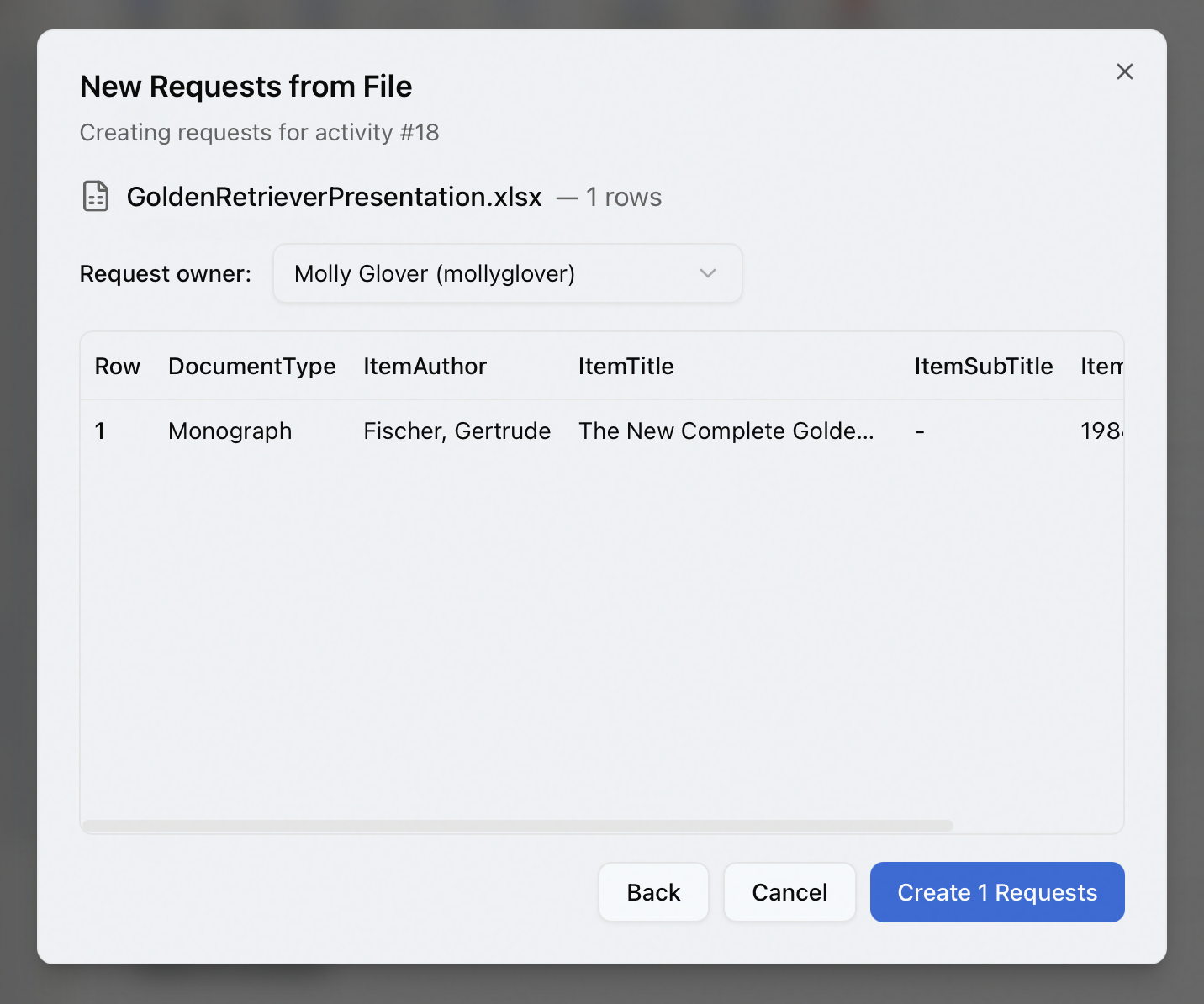
Step 4 — Create the requests
Click Create N Requests (the button shows the exact count from your file).
Aeon validates every row and then creates the requests, each linked to the activity and owned by the user you chose. Two outcomes:
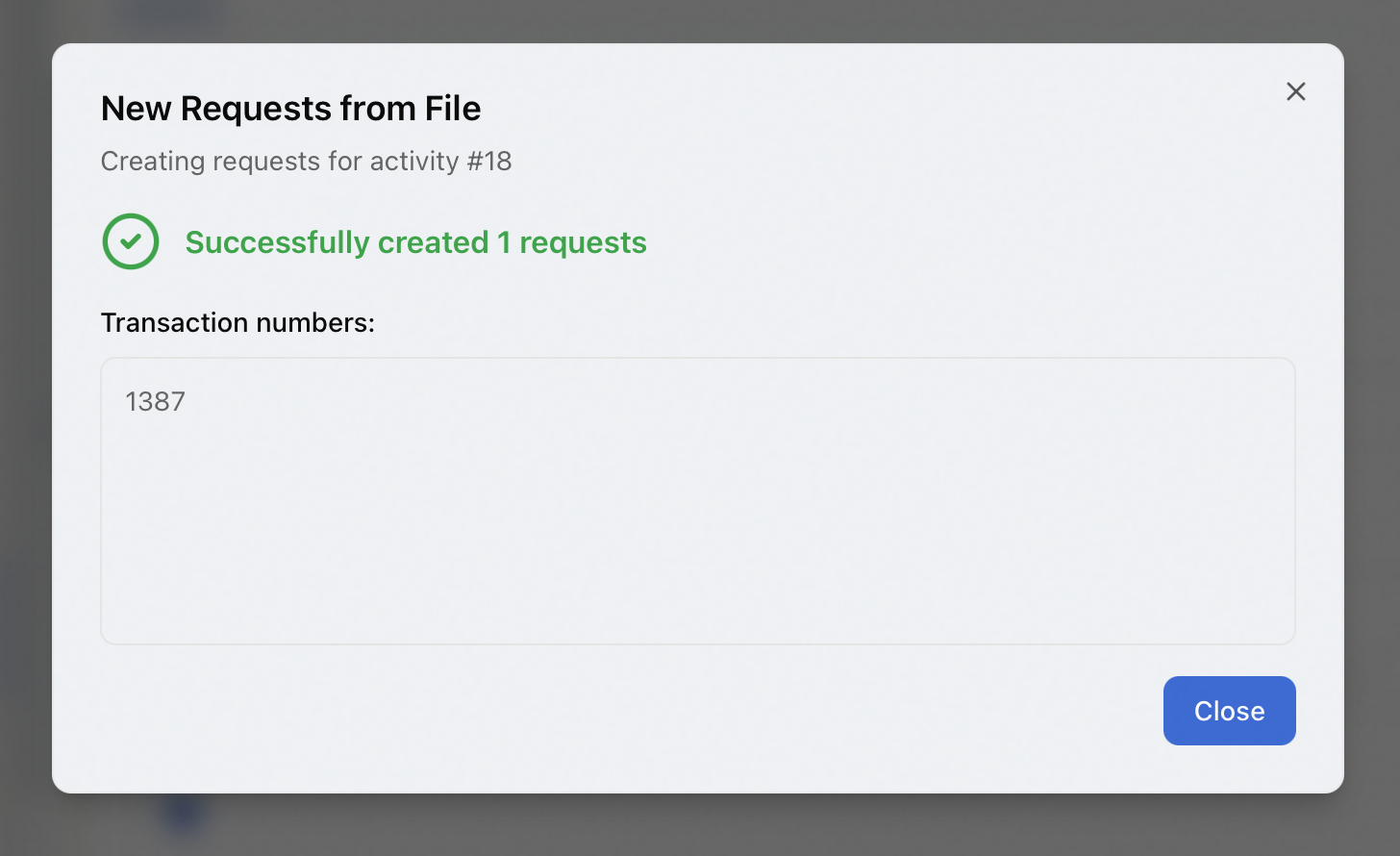
- Success — a green confirmation reads "Successfully created N requests" and lists the new transaction numbers (for example,
12345, 12346, 12347, …). The activity's request list and counts refresh automatically. Click Close. - Validation failure — if any row fails, you'll see "Validation failed — no requests created." The dialog lists each problem by field and message. Nothing is created in this case. Click Back, fix the file, and try again.
Request creation is all-or-nothing. A single bad row stops the whole batch — Aeon will not create the valid rows and skip the rest. Correct the listed errors in your spreadsheet and re-run the import.
What happens to the new requests
Each row becomes a standard Aeon request linked to the activity, owned by the user you selected, and routed by your normal routing rules — exactly as if you'd created it by hand. From there they behave like any other request: you can open, edit, route, and process them. To see them, open the activity's requests (see Viewing Activity Requests).
- New Requests from File is available to staff with Edit access to Requests (to see the toolbar action) and Edit access to Activities (enforced by the parse and create endpoints). View-only roles can't use it.
- The menu item stays disabled until the activity has at least one linked user, since the requests must be created for one of them.