Opening and Viewing Activities
An activity is how Aeon groups a set of users and their requests around something you're running — a class visit, a workshop, an exhibition pull, a tour. Opening an activity just means looking at it: pick it from the Activities list and its detail view opens on the right, showing its fields plus tabs for the people, requests, notes, and history attached to it. Anyone with access to activities can open one to read it — opening alone changes nothing and never blocks a coworker.
Locking is what happens when you start editing an activity. Aeon uses a record lock so only one staff member changes a given activity at a time, which is what stops two people from overwriting each other on activity #123. Most of the time you never think about it: the moment you start editing, Aeon locks the activity for you automatically. The Lock button and the warnings on this page are for the cases where you want to claim an activity deliberately, or where someone else already has it.
- You need to check the details of an activity — when it runs, who's attached, what's been requested — so you open it to read.
- You're about to edit an activity and want coworkers to see it's taken, or you'll step through several toolbar actions — click Lock first.
- You open an activity and see Locked by someone — that tells you to coordinate rather than overwrite.
If you've used the older Aeon desktop client, activity work used to live there. In Aeon 7 you open, view, and edit activities directly in the web staff client — this page describes that web workflow.
Opening an activity
- Go to Activities from the workspace. The left panel lists your activities.
- Find the one you want. You can type in the Search activities... box (it matches name, description, and location) or use the filter and sort controls above the list.
- Click the activity's row. Its detail view opens on the right.
The browser URL updates to the selected activity (for example, /activities?activity=123), so you can copy the address to point a colleague straight at it.
The list works like the request queues: a Cards / Grid toggle at the top right switches between the stacked activity cards and a spreadsheet-style Grid, and you can save a column layout, sort, and filters as a named View. Clicking a row opens the activity either way — see Using the Grid and Saved Views for how the Grid, saved Views, and queue pinning work.
By default the list shows only activities marked Active, controlled by an Active only toggle among the list controls. Turn it off to include activities that have been marked inactive — for example, a class visit from last term whose items have all been reshelved. A counter shows how many activities are loaded out of the total that match — for example, "30 of 45 items."
What you see when an activity is open
The detail view opens on the Details view first, with these tabs available across the activity:
| Tab | What it shows |
|---|---|
| Details | The activity's core fields — name, description, type, status, location, begin/end dates, the Active checkbox, reference name/number, billing category, and any custom info fields your site has added. |
| Requests | The item requests attached to this activity. |
| Users | The people linked to the activity (its members). |
| Notes | Staff notes on the activity. The tab shows a count of how many notes exist. |
| History | A log of changes to the activity — date changes, members added or removed, and whether it was cloned from an earlier activity. |
| Attendance | Daily attendance counts you can record by date. |
The exact fields and their arrangement on the Details view follow your site's activity form layout, so what you see may differ from another Aeon site.
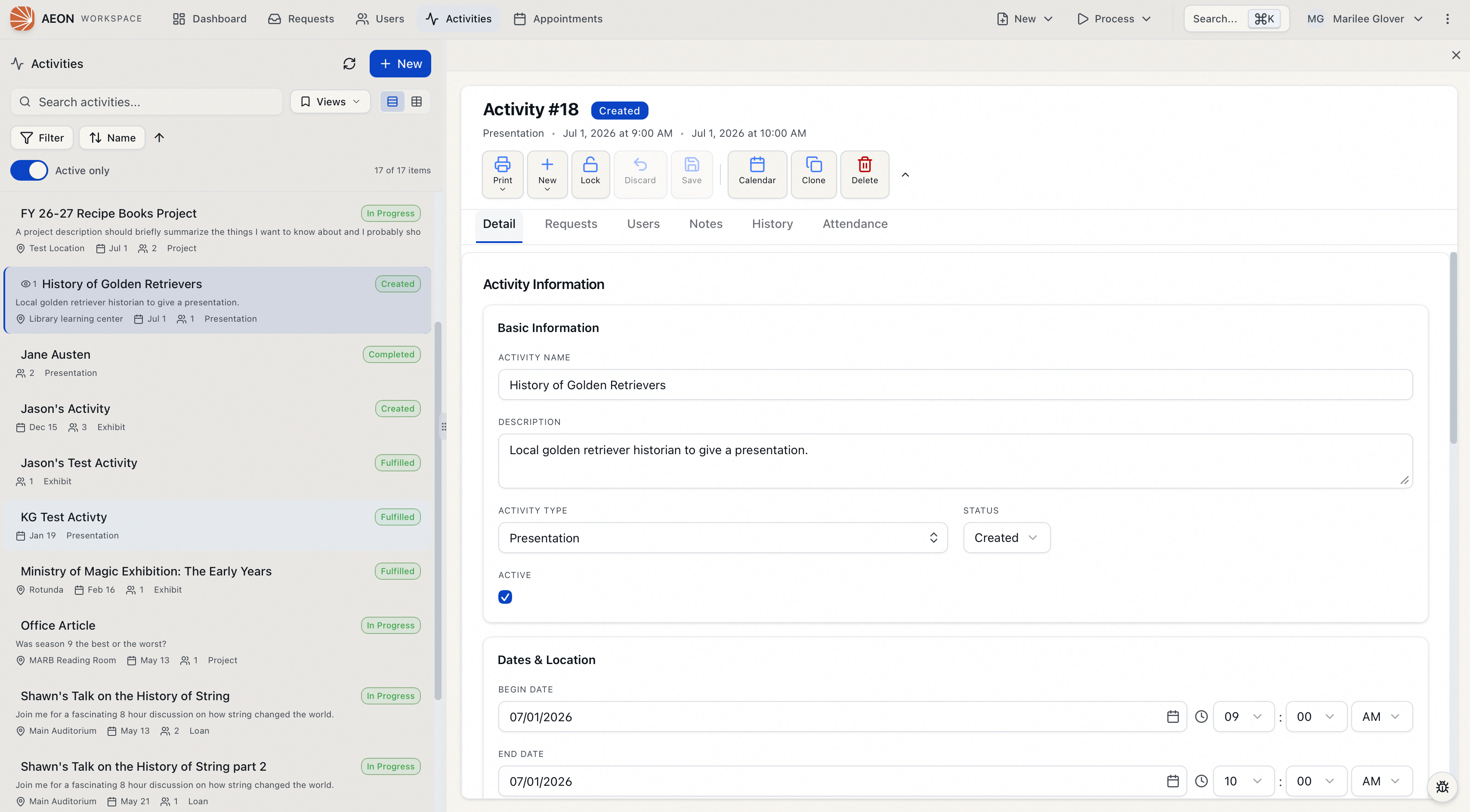
While you're only viewing, the activity is not locked and stays available to everyone. Read or review freely.
How locking works
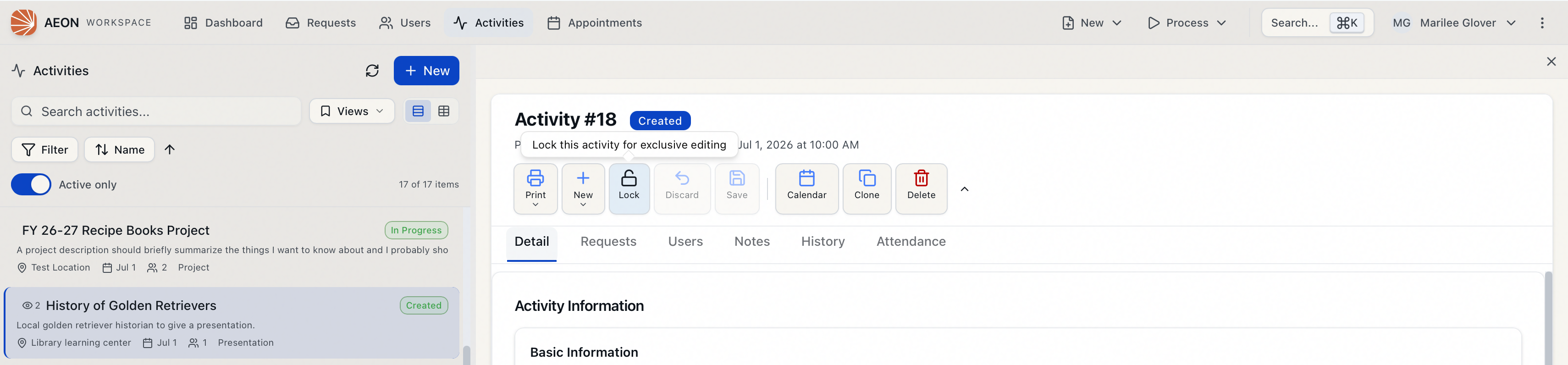
The lock is shown by a single control in the activity toolbar that changes depending on the current state:
| Toolbar control | What it means |
|---|---|
| Lock (open-padlock icon) | The activity is free. Click to claim it for editing. |
| Unlock (padlock icon, amber) | You hold the lock. Click to release it. |
| Locked by name (padlock icon, red, disabled) | Someone else is editing it right now. You can't edit until they release it. |
Hovering the control shows a tooltip — "Lock this activity for exclusive editing," "Release your lock on this activity," or "This activity is being processed by name."
Locking happens automatically when you edit
You rarely click Lock yourself. The moment you change any field on the Details view, Aeon acquires the lock for you in the background. From that point the activity is yours until you save, discard, release it, or open a different record.
Locking manually
To claim an activity before you start typing — useful when you want coworkers to see it's taken, or you're about to run several toolbar actions:
- Open activity #123.
- In the toolbar, click Lock.
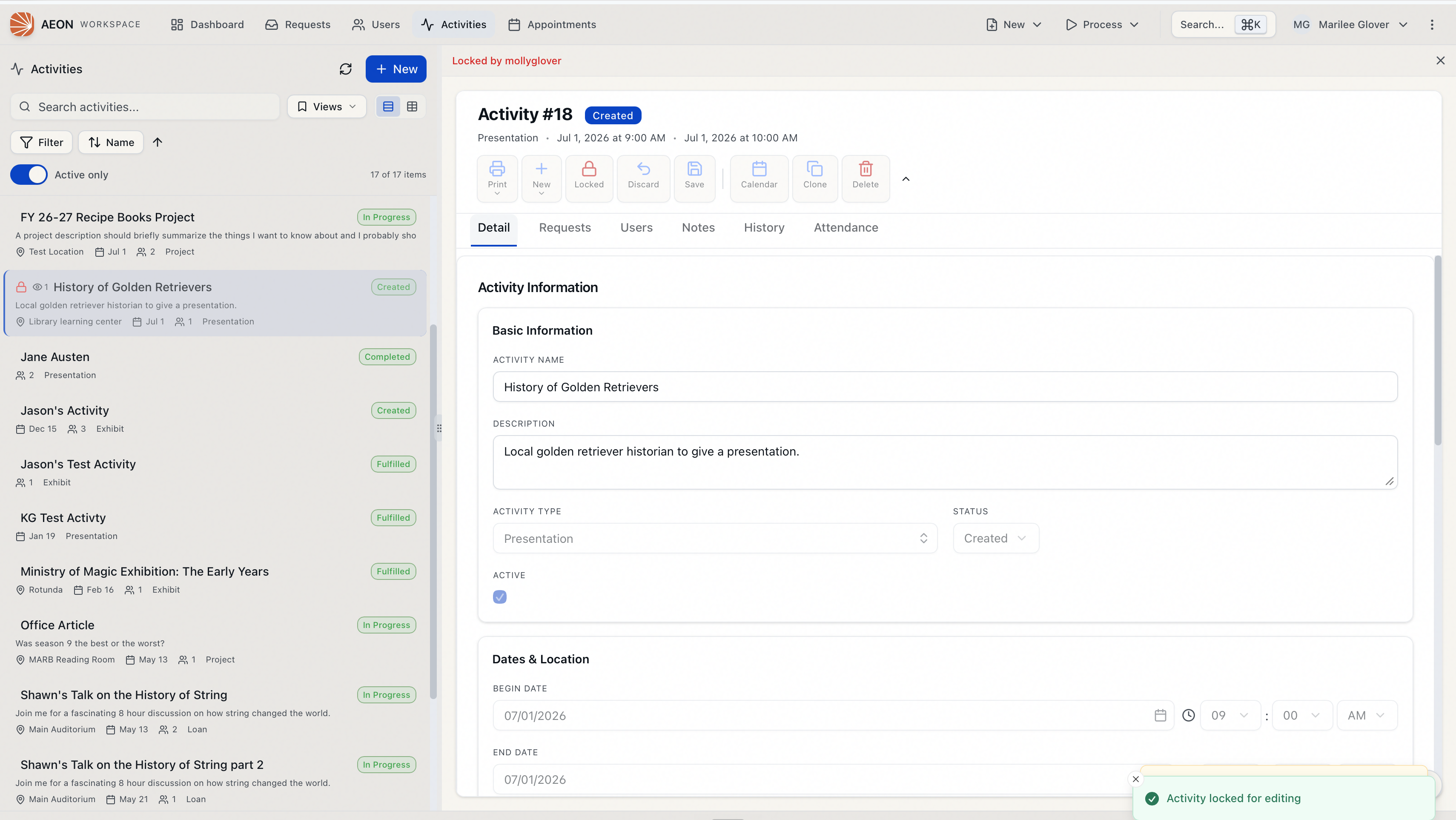
- A brief status message confirms "Activity locked for editing." The control switches to Unlock.
Releasing the lock
Your lock is released when you:
- click Unlock (you'll see "Activity unlocked"),
- Save your changes — Aeon saves and then releases the lock for you, or Discard them, or
- open and lock a different activity. You can only hold one activity lock at a time, so locking another one automatically releases this one first.
Simply viewing another activity, request, or user does not release your lock — you can reference another record and come back. The lock only moves when you actually start editing (or explicitly lock) a different activity.
When someone else holds the lock
If you open an activity a coworker is editing, the toolbar shows Locked by name, a red Locked by name label appears at the top of the detail panel, and the form is read-only. You can still read every field and every tab; you just can't edit or save until they're done.

While an activity is Locked by another user, editing is disabled. If you somehow try to save anyway, Aeon refuses with "Cannot save - this activity is locked by another user." Reach out to the person named on the lock instead of forcing the change. The moment they release it, the control returns to Lock and the activity is yours to claim.
If someone takes a lock on an activity you're viewing, Aeon tells you in the moment with a "Activity is now being edited by name" notification, so you know to stop before making edits. If your own lock is dropped for inactivity while you have the activity open, you'll see "Your lock on this activity has expired" — reopen and click Lock to claim it again.
- Opening and viewing an activity requires the View level (or higher) of the Activities permission. Without it, the Activities area isn't available to you.
- The Lock/Unlock control — and editing the activity at all — requires the Edit level of the Activities permission. If your role is view-only for activities, the lock control and the Save/Discard buttons are disabled and you can read but not change the activity.
- Locking relies on Aeon's real-time connection. If your session has lost that connection, the Lock control is temporarily disabled until it reconnects.