Creating and Editing Activity Details
An activity groups together the requests, users, and scheduling for something like a class visit, an exhibit, or a research seminar. Staff create the activity first; researchers then attach their own requests to it from the web, and those requests land in the Awaiting Activity Processing queue. The details you set here — the activity's name, type, status, dates, and location — are what staff and (for active activities) the associated researchers see.
This page covers the two moments you touch those details: creating a brand-new activity, and editing the details of one that already exists. Adding users, tracking attendance, importing requests from a file, cloning, and deleting each have their own pages; this one is about the activity's own information.
- A class or exhibit is coming up and you need to set it up so a professor and their students can request items against it — create a new activity.
- An activity's date moved, its name needs cleaning up, or you're winding it down — open it and edit the details.
- You want to stop an activity from showing in researchers' web accounts without deleting it — open it and clear the Active checkbox (see Marking an activity inactive).
In the older desktop client, activities could only be created and edited from the desktop — the web side was view-only. That's no longer true. In Aeon 7 you create, edit, and process activities directly in the web staff client, the same place you work requests and users.
Creating a new activity
Start a new activity from the Activities screen.
- Open Activities from the navigation.
- In the activity list on the left, click the New button (the plus icon) at the top.
- A blank activity form opens in the detail pane, badged New Activity (Unsaved).
- Fill in the details (see The activity details below). At minimum you must provide:
- Activity Name
- Activity Type
- Status
- Click Create Activity at the top of the form. The button reads Creating… while it saves.
- On success you'll see an Activity created confirmation, and the form switches to the saved activity — now with its assigned Activity ID and the full set of tabs (Requests, Users, Notes, History, Attendance).
If you decide not to keep what you've entered, click Clear to empty the form, or close the pane.
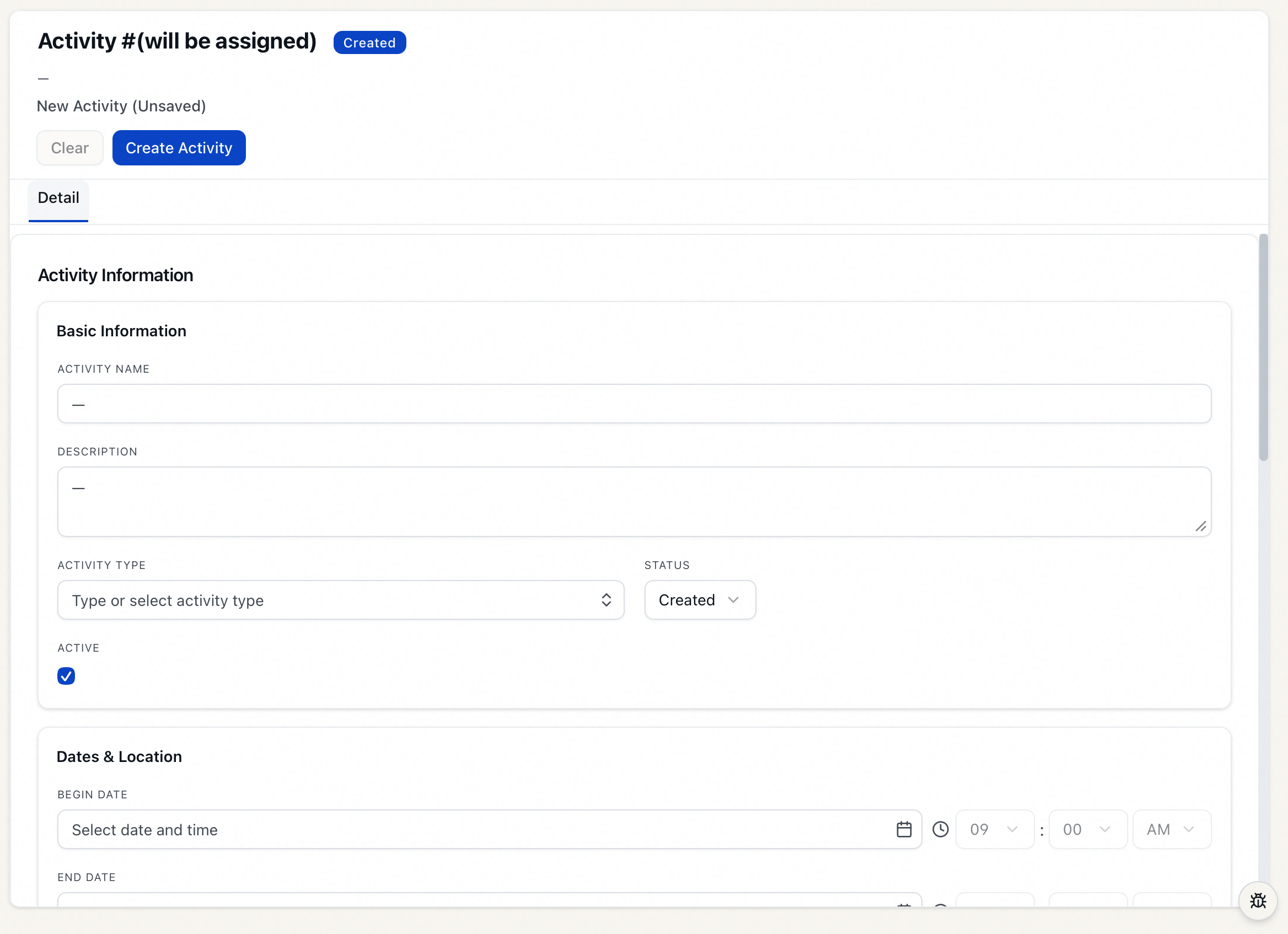
A new activity is created Active by default, and its Status starts as Created unless you choose another. The Activity ID is assigned by Aeon when you save — it's the activity's transaction number and can't be set by hand.
Activity Name, Activity Type, and Status are all required — Aeon will flag the missing one if you try to save without it. If you set both a Begin Date and an End Date, the end date can't be earlier than the begin date; Aeon refuses the save with "End date cannot be earlier than begin date."
Opening an activity to edit it
- Open Activities and find the activity in the list (search by name, linked user, or ID if needed).
- Click the activity to open its detail view on the right. The Detail tab shows the activity's information; the other tabs (Requests, Users, Notes, History, Attendance) hold its related records.
- Edit any field. As soon as you change something, Aeon locks the activity for you automatically so a coworker can't edit it at the same time, and an Unsaved changes marker appears.
- Click Save in the toolbar (or press Ctrl/Cmd + S). You'll see "Activity #12345 saved," and your lock is released.
To throw away your edits, click Discard — the form reverts to the last saved values and the lock is released.
Just opening an activity to read it locks nothing. The lock is acquired the moment you start editing, and it's released when you save, discard, or move on. If a coworker is already editing the activity, the toolbar shows Locked by name and the form is read-only until they're done. See Opening & Locking a Request for the full explanation of how Aeon's record lock behaves.
The activity details
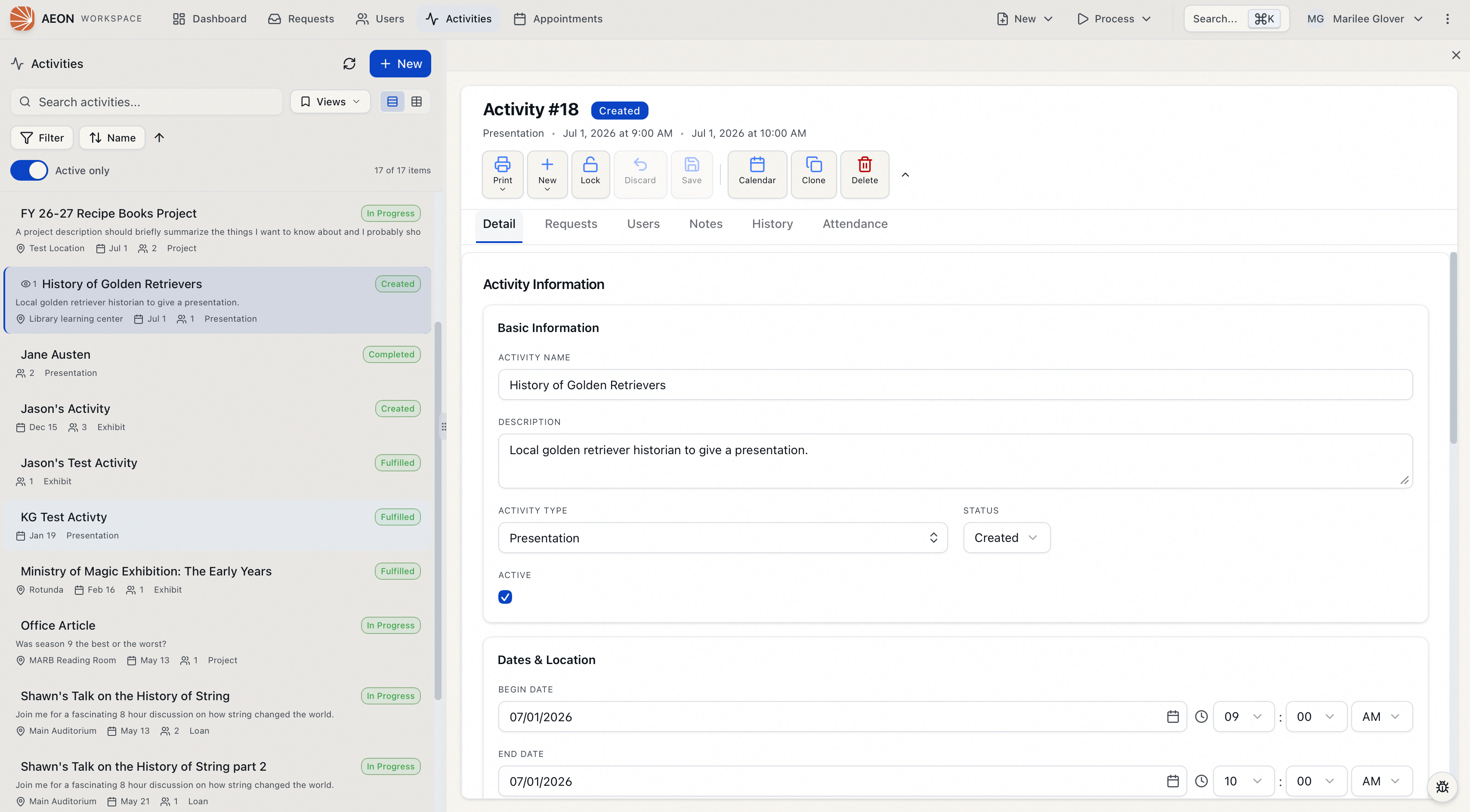
The default form groups the activity's fields into a few sections on the Detail tab. (Your site can rearrange, rename, hide, or add to these through the Activity form designer, so what you see may differ.)
Basic Information
| Field | What it's for |
|---|---|
| Activity Name | The name of the activity (for example, History 305 — Fall Seminar). Required. |
| Description | Free text describing or categorizing the activity. |
| Activity Type | The kind of activity, chosen from a dropdown. You can also type your own value — a typed value applies only to this activity. To add choices for everyone, edit the ActivityType group in the Custom Dropdowns table. Required. |
| Status | The activity's workflow status (for example, Created, or Completed). The available statuses can vary by activity type. Required. |
| Active | A staff-controlled checkbox, independent of the begin/end dates. While checked, the activity shows in associated researchers' web accounts; uncheck it to retire the activity without deleting it. |
Dates & Location
| Field | What it's for |
|---|---|
| Begin Date | The start date (and optional time) of the activity. |
| End Date | The end date (and optional time). Can't be earlier than the begin date. |
| Location | Where the activity takes place, chosen from a dropdown. Like Activity Type, you can type your own value (it applies only to this activity); to add shared choices, edit the ActivityLocation group in the Custom Dropdowns table. |
Reference Information
| Field | What it's for |
|---|---|
| Reference Name | An optional key staff use to reference the activity — for example, the professor's name for a class presentation. |
| Reference Number | An optional second key — for example, a course number, room, or time. |
| Billing Category | An optional billing category for the activity. Choose (None) to leave it unset. |
Custom Fields
The form includes five free-text fields — Activity Info 1 through Activity Info 5 — for any extra information your institution wants to record on an activity. Your site may relabel or hide these in the form designer, and may also surface your own defined custom fields here.
When you change Status and save, Aeon stamps the change with the current date so the activity's history and Status Date reflect when it last moved. You don't set the status date yourself.
Marking an activity inactive
Activities tied to requests can't be deleted — but you can take them out of researchers' view by marking them inactive:
- Open the activity.
- On the Detail tab, clear the Active checkbox.
- Click Save.
The activity stays in the system (and in staff search) but no longer appears in associated researchers' web accounts. To delete an activity entirely, it must have no associated requests — see Deleting an Activity.
Other actions on the toolbar
When you have an activity open, the detail toolbar also offers, alongside Save and Discard:
- Print Callslips — print call slips for the activity's requests (all requests, or only those still Awaiting Processing).
- New — create a single new request for the activity, or import requests from a file.
- Calendar — download the activity as an
.icscalendar file (requires a begin or end date; save your edits first). - Clone — copy the activity, with selected users, notes, and requests, into a new one.
- Delete — remove the activity (only if it has no requests).
These each have their own page; they're noted here so you know where the buttons live.
Activity work is gated by the Activities operational capability on your role:
- Viewing activities (opening the list and reading details) needs at least View.
- Creating an activity, editing its details, and saving require Edit. With only View access, the form is read-only and the Save / Discard / Create buttons are disabled.
- Deleting an activity (and deleting notes or attendance records) requires Full.
The toolbar's New Request action additionally depends on your Requests capability (Edit). And while an activity is Locked by another staff member, its edit controls are disabled for you regardless of your role until they release it.